
Course The Rose - reports and the link with the accounts (#11)
The final piece of the basic track: keeping an overview, and being sure that every invoice ends up in the accounts. The good news is that the second happens by itself. This part shows what The Rose offers you in reports, how the link with our accounts works and what you do and do not have to do.
Part 1: reports
Click Reports in the sidebar. The Rose offers five reports:
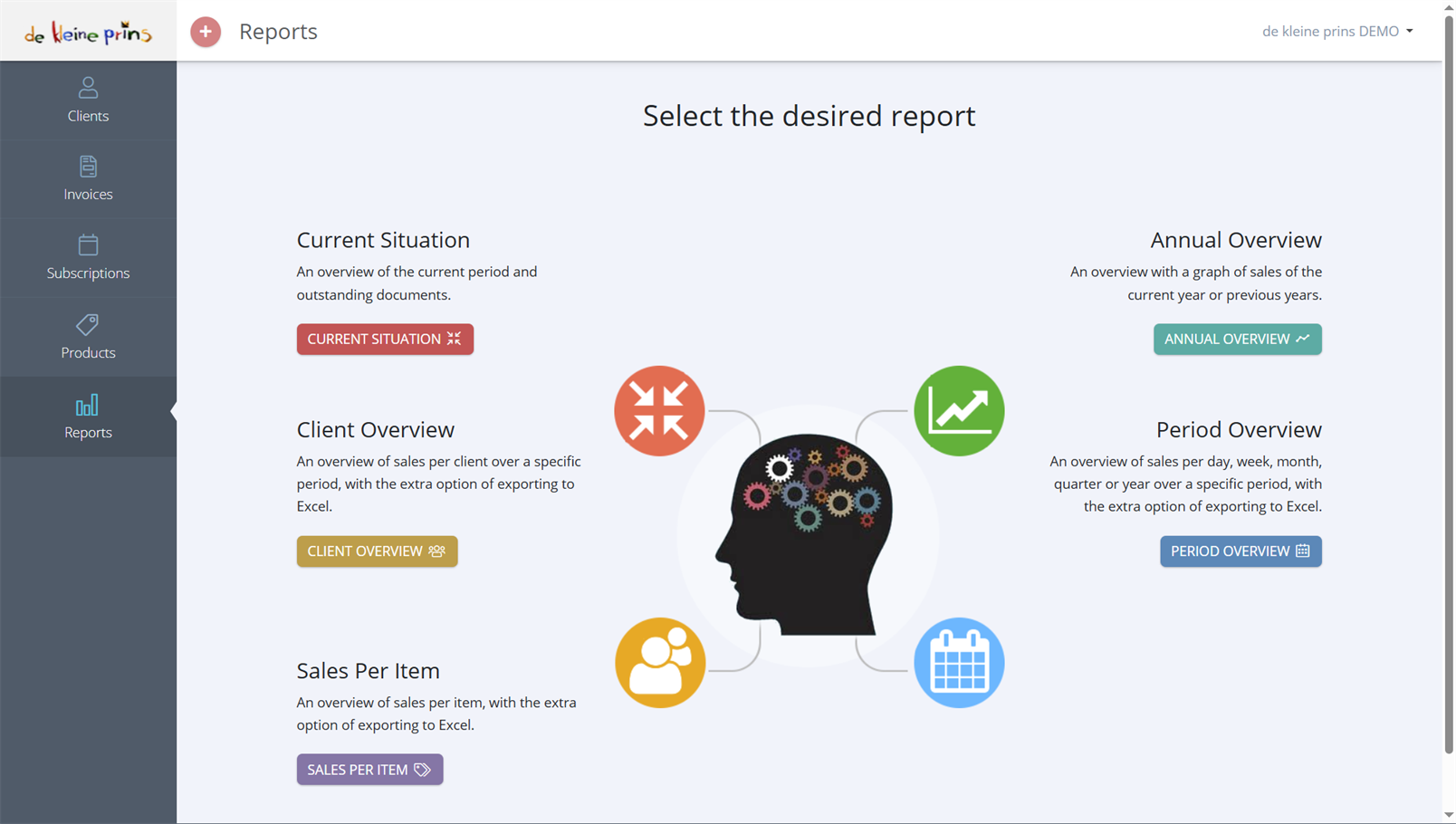
- Current Situation: the current period and everything still outstanding. The starting point for your reminders (course part 9).
- Annual Overview: a graph of your sales for the current year or previous years. Handy for the board and for your budget.
- Client Overview: sales per client over a period you choose. Who your biggest clients are (a municipality, a school, a sponsor) and how much they represent.
- Period Overview: sales per day, week, month, quarter or year over a period you choose.
- Sales Per Item: sales per product. How much in membership fees, how much in hire, how much in activities; this is where consistent products (course part 4) pay off.
The last three can be exported to Excel. If you want all invoices as a list yourself, use More actions → Export To Excel in the invoice overview. Note: your VAT return is prepared by us on the basis of the accounts, not of these reports.
Part 2: how your invoices reach the accounts
Click the name of your organisation at the top right and choose Links. Under Accounting you see the possible links; for our clients Clearfacts is active (green):
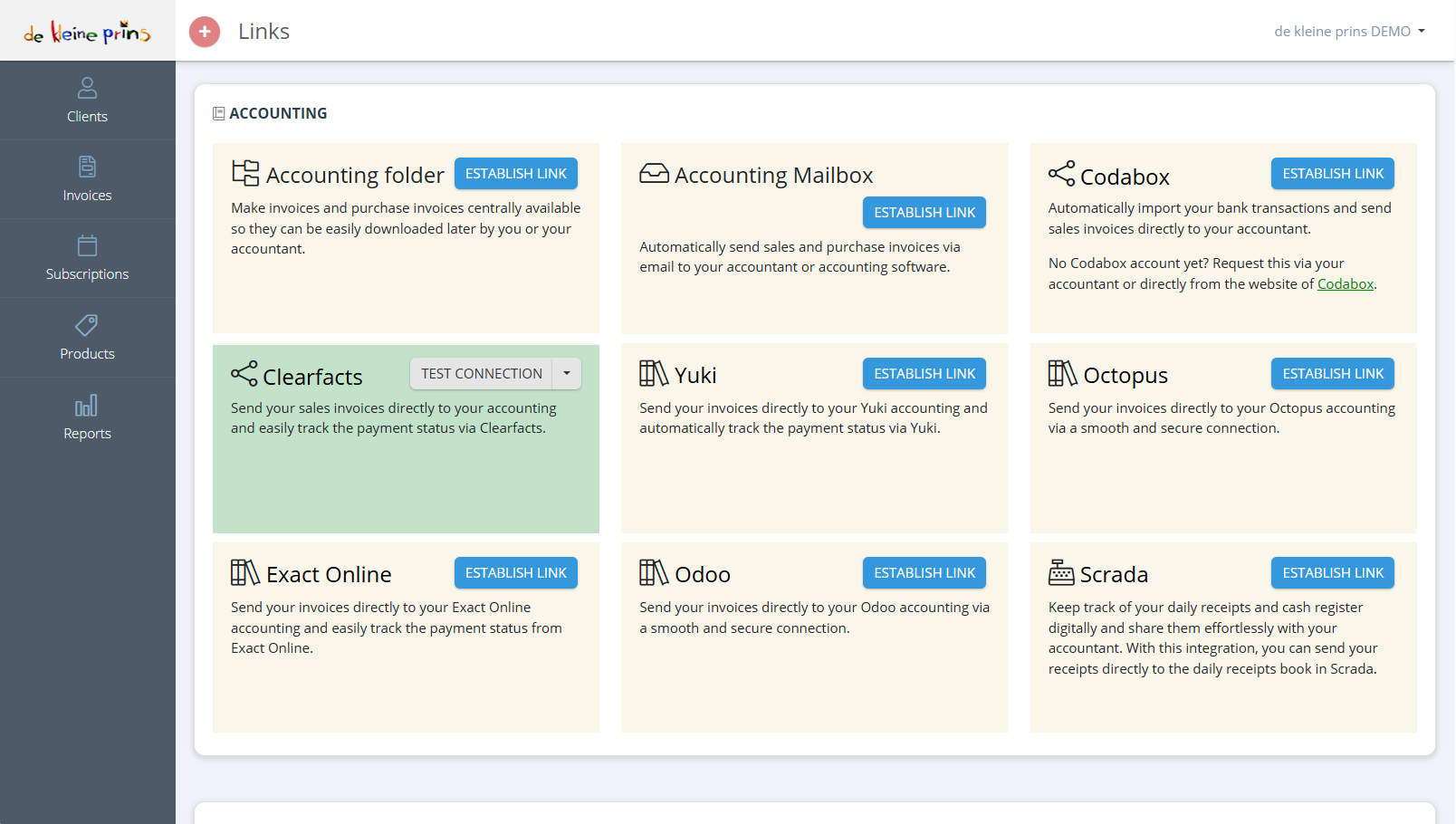
- Clearfacts with the Test connection button: this is our accounting software, the engine behind The Lantern. This link is on and should stay on.
- Codabox: the exception you may switch on. That link does not forward invoices, but reads your bank transactions so that payments are matched quickly; we recommend it (see course part 8).
- The other cards (Accounting folder, Accounting Mailbox, Yuki, Octopus, Exact Online, Odoo, Scrada) are links for those who work with another accounting firm or other software. Do not switch on a second accounting link: your invoices would then arrive twice, or in the wrong place.
What happens: every time you send an invoice or credit note (course parts 6 and 7), The Rose automatically forwards it to the accounts as well. Drafts and created but not yet sent invoices do not go along. If you exceptionally send an invoice outside The Rose (on paper), forward it yourself with Actions → To accounting in the overview, or in bulk via the Accounting button at the top of the overview. For our clients forwarding is normally set to automatic, so you rarely need that button. You do not have to email, print or upload anything in The Lantern; if you do, the invoice is in there twice and we have to take it out.
In the history at the bottom of each invoice you see the confirmation that it has been sent to the accounts. If that line is missing on a sent invoice, or you see an error message, click Test connection on Clearfacts and report it to your file manager if the test fails.
Part 3: what you still have to do (little)
- Invoice in time. For non-profits subject to VAT, an invoice must be issued no later than the fifteenth day of the month following the delivery or service (Royal Decree no. 1, art. 4). For everyone: an invoice in the right financial year saves corrections at the closing.
- Send all invoices of the financial year before the year-end closing, or forward them with To accounting. Drafts and unsent invoices do not reach the accounts and therefore not your annual accounts.
- Register payments or have them read in automatically (course part 8), so that The Rose and the accounts give the same picture of what is outstanding.
- Notify us of special cases: a refund after a credit note, an overpayment, a client going bankrupt. Those are entries that do not follow automatically from The Rose.
Part 4: purchase invoices do not belong in The Rose
The Rose is for your sales: what you invoice to others. Invoices your non-profit receives itself (rent, printing, insurance) you process in The Lantern: upload or receive via Peppol, code, pay. That is what the course The Lantern is about. So you do not use the Accounting Mailbox card or the “receive purchase invoices” option in The Rose.
Part 5: the figures in The Rose and those in the accounts
The reports in The Rose show what you invoiced; the accounts also show your costs, your bank and your corrections. The turnover figures should match, but you read your non-profit’s result in the accounts, not in The Rose. For a complete picture, use The Binoculars, our reporting tool on the accounts (see the course The Binoculars).
State of the regulations: September 2026.
Next step: this completes the basic track. The following parts are extras: start with course part 12 if you work with quotations, or with course part 13 if you want to invoice membership fees or rent automatically.
The screenshots on this page show the English interface of our demo file in The Rose.