
Course The Rose - correcting mistakes: adjust, credit, cancel (#10)
Everyone makes mistakes on an invoice: a wrong amount, a wrong client, an activity that did not take place. The question is not whether it happens, but how you correct it properly. The rule is simple and it is strict: as long as an invoice has not been sent, you adjust it; a sent invoice you credit. This part explains why, and how you do that in The Rose.
Part 1: first see what it is
- Draft (no number): open the invoice, click Update, correct, save. Done. You may also simply delete a draft.
- Created (with number), not yet sent: adjust as well. Choose Actions → Update in the overview, or open the invoice and click Update. It has not yet been sent to the accounts, so there is nothing to correct there yet. Preferably do not delete it: the number has already been issued.
- Sent: credit, always.
Why so strict? A sent invoice has a sequential number in a continuous series, is with the client and is in the VAT accounts. If you change it afterwards, what the client received differs from what is in your accounts, and the series is no longer verifiable. In a VAT audit that is a problem, also for an exempt non-profit. The VAT Code provides the credit note as the correction document precisely for that reason (Royal Decree no. 1, art. 12: a corrective document refers to the original invoice).
Part 2: creating a credit note
In the Invoices overview choose Actions → Credit on the wrong invoice, or open the invoice and choose the credit note under Create document. The Rose creates a new document that refers to the original invoice and takes over all lines with a negative sign.
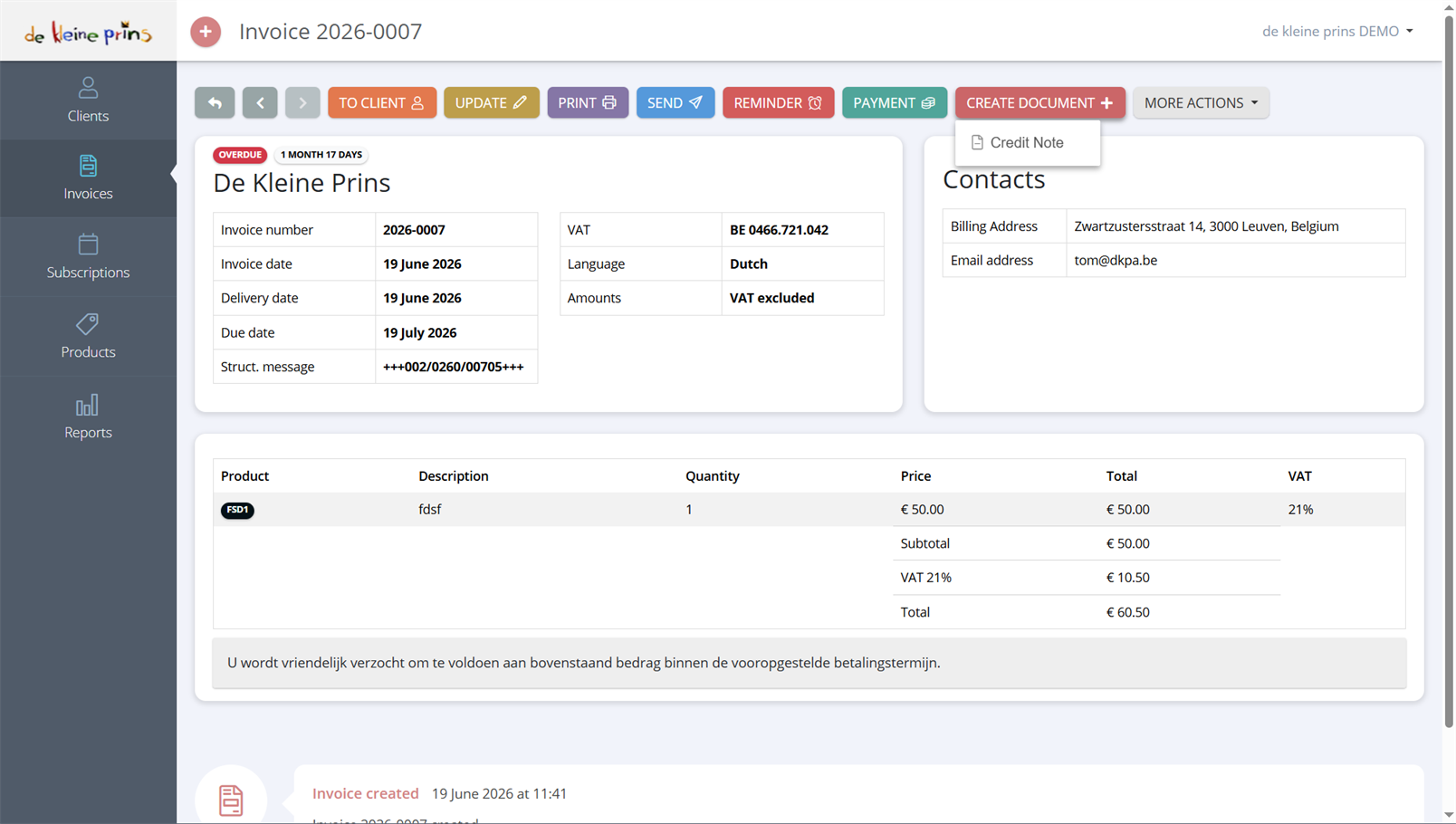
On a sent invoice, Create document offers exactly one choice: Credit Note. The form that opens is a mirror image of the invoice, with the reference to the original already filled in.
Two possibilities:
- Full credit note. Leave all lines: the invoice is fully neutralised. Use this if the invoice was completely wrong (wrong client, activity cancelled) or if you want to redo it. Then create a new, correct invoice; it simply gets the next number.
- Partial credit note. Remove the lines that were right and leave only the amount to be credited (e.g. one participant fewer, a discount you forgot). The original invoice remains; the client pays the balance.
Click create. The credit note gets its own number (in the same or a separate series, according to your settings) and goes to the accounts as soon as you send it.
Send the credit note like an invoice (course parts 6 and 7): the client needs it to correct their own accounts, and for Belgian clients subject to VAT it must go via Peppol just like the invoice.
Part 3: what about the payment?
- Not yet paid: after a full credit note nothing is outstanding any more; after a partial one the client pays the balance. The Rose works that out.
- Already paid: then your non-profit must refund the credited amount, or offset it against a next invoice in agreement with the client. Report this to your file manager, so that the refund is linked to the credit note in the accounts.
Part 4: a mistake in the credit note itself
Credited a wrong amount? Same rule: a sent credit note you do not adjust. Create a new invoice for the part credited too much, or a second credit note for the part credited too little. See the supplier’s article “Credited the wrong amount?”.
Part 5: what you had better not do
- Change the invoice number. Technically possible in some cases, but continuous numbering is a legal requirement. Leave it.
- Adjust the status by hand. Setting an invoice to “paid” by hand without registering a payment, or back to “draft”, makes your tracking unreliable. Register a real payment (course part 8) or credit. A wrongly registered payment, on the other hand, you simply undo with Actions → Delete payment.
- Delete a sent invoice. In The Rose you can delete an invoice and in some cases also restore it, but with the client and in the accounts it has already arrived. A deleted sent invoice leaves a gap in the series that we have to be able to explain. If it happened anyway: report it to your file manager immediately and say which number it was.
Part 6: frequently asked questions from practice
- “I sent the invoice to the wrong client.” Credit in full, new invoice for the right client. Send the wrong recipient the credit note with a word of explanation.
- “The activity has been cancelled.” Credit in full; if already paid, refund.
- “A participant withdrew after invoicing.” Partial credit note for that one participant.
- “The client wants a different address or VAT number on the invoice.” If the invoice has already been sent: credit and redo with the right client details (adjust the client first, course part 3). For a site address or a different delivery address there is a separate field on the client.
- “I created an invoice twice by mistake.” Credit the second one in full. Do not delete.
- “My discount or the reference is not on the printout.” That is not a mistake in the invoice but in the layout; see course part 14 and the help centre.
Next step: in course part 11 you look at your reports and see how your invoices end up in the accounts automatically.
The screenshots on this page show the English interface of our demo file in The Rose.