
Course The Rose - sending reminders (#9)
An invoice still outstanding after the due date is usually not unwillingness but forgetfulness. A friendly reminder is usually enough. The Rose makes that easy: one click for a manual reminder, or a setting that lets the program remind by itself at the moments you choose. In this part you learn both, and you read which rules apply if you want to charge fees.
Part 1: sending a reminder
Open an overdue invoice (red label Overdue) and click Reminder in the button bar, or choose Actions → Reminder in the overview:
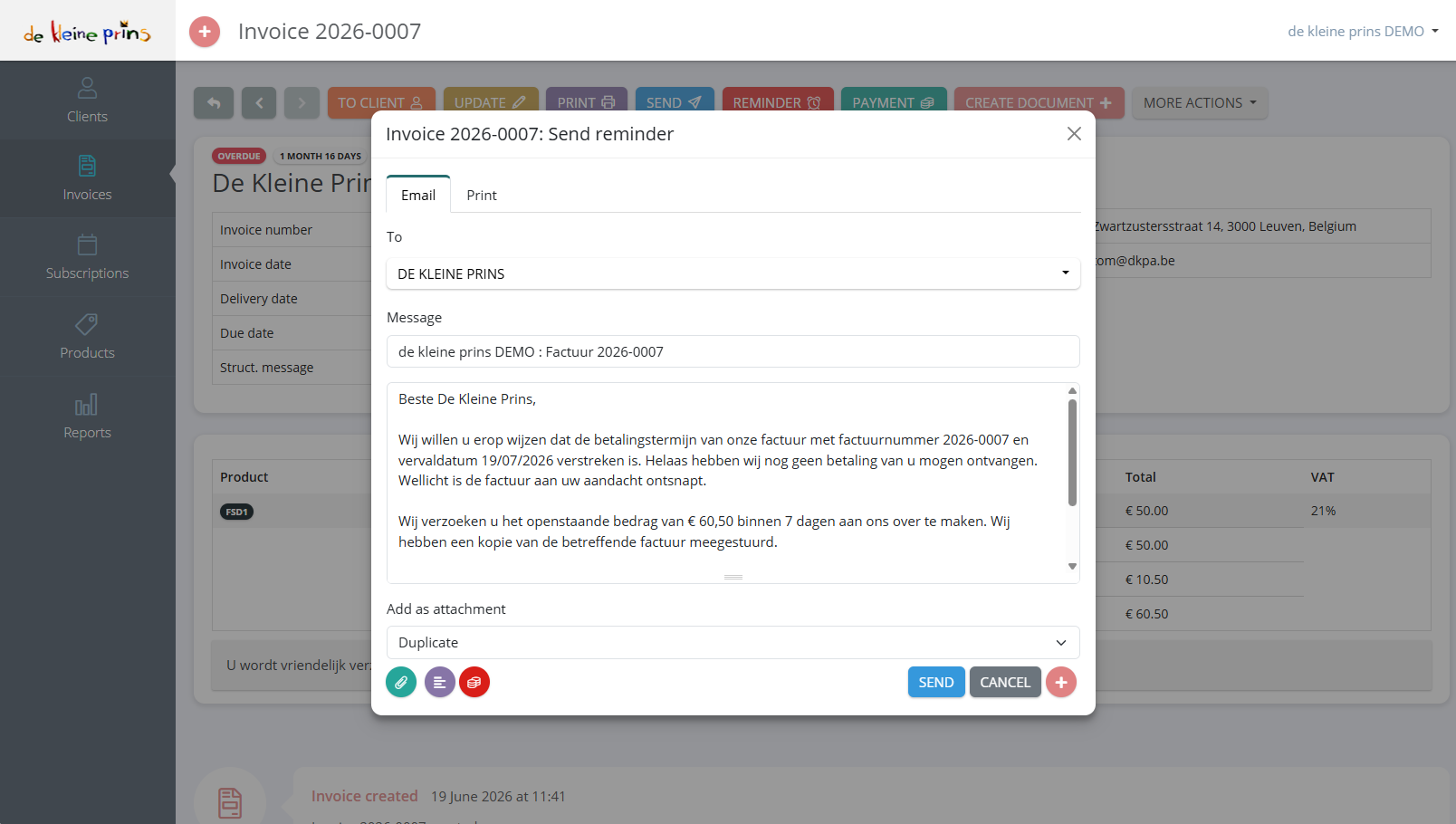
- The tabs Email and Print: by email or on paper.
- To: the client’s email address, adjustable.
- Message: subject and text, pre-filled with your default text for reminders (see part 3). The variables are already replaced: invoice number, due date and outstanding amount are in it.
- Add as attachment: by default a Duplicate of the invoice, so the client does not have to search. You can also attach a separate reminder document (see part 2).
- The icons at the bottom left: add attachment, choose template, add reminder fees.
- Send.
The reminder appears in the invoice’s history, with date. That way you always see how many times and when a client was reminded.
Part 2: several reminders and document types
If a client does not pay after the first reminder either, you send a second and possibly a third. The Rose keeps track of which reminder it is and can use a different text and a different document per level: a friendly first reminder, a second mentioning the fees, a registered formal notice as the last step. The different document types are in the article on types of reminder documents.
To remind all overdue invoices in one go, select them in the invoice overview and use the reminder action for the selection.
Part 3: setting texts and reminder fees
Click the name of your organisation at the top right, choose Settings and then the Reminders tab:
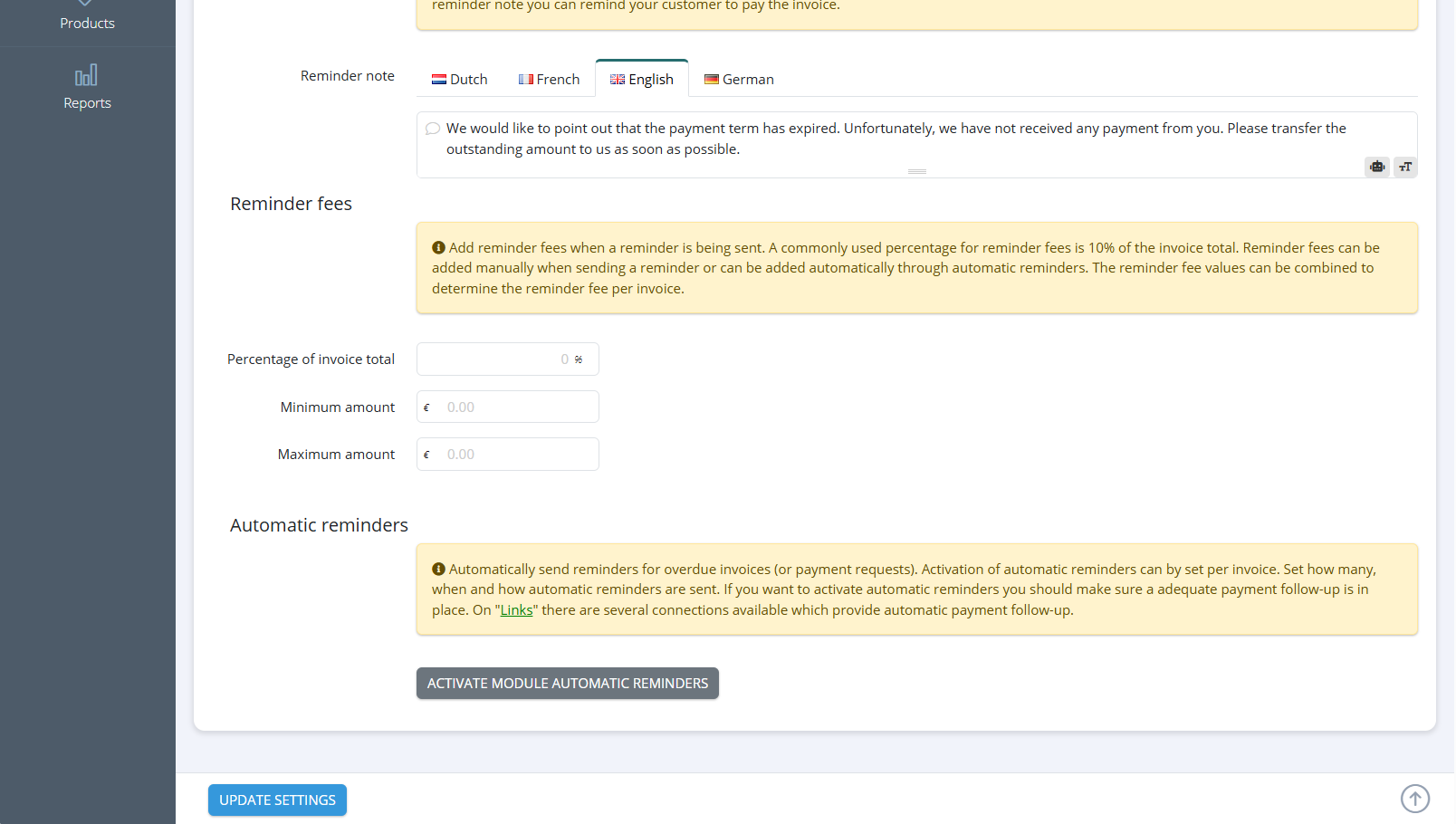
- Reminder note: the default text of the reminder, in four languages (Dutch, French, English, German). The Rose picks the client’s language.
- Reminder fees: a Percentage of invoice total with a Minimum amount and a Maximum amount. If you leave this at zero, no fees are charged. Read part 4 before you fill in anything here.
- Automatic reminders with the button Activate module automatic reminders (part 5).
- Update settings to save.
Part 4: may your non-profit charge reminder fees?
That depends on who your client is.
- An organisation (business, municipality, another non-profit with an economic activity). Between businesses the Belgian law of 2 August 2002 on combating late payment in commercial transactions applies: after the due date interest is due by operation of law and you may claim a flat-rate compensation for recovery costs, provided your general terms and conditions provide for it and they are on or with the invoice.
- A private individual (a member, a parent, a participant). Here Book XIX of the Code of Economic Law, “Consumer debts”, has applied since 1 September 2023, and it is strict: the first reminder is free, fees may only be charged after the consumer has received that first reminder and fourteen calendar days have passed, and the penalty clause is capped (EUR 20 for debts up to EUR 150; EUR 30 plus 10 % of the amount between EUR 150 and 500; EUR 65 plus 5 % above EUR 500, with a maximum of EUR 2,000). Moreover, the penalty clause must be in your terms and conditions beforehand. These rules apply as soon as your non-profit counts as an “enterprise” within the meaning of the Code, which is the case as soon as it pursues an economic activity on a lasting basis, even without profit motive.
Practical advice for most non-profits: set the reminder fees in The Rose to zero and use the first reminder for what it is: a friendly nudge. If you do want to charge fees, first have your general terms and conditions checked and set the percentages and caps in consultation with your file manager. A fee charged too high to a consumer is void and costs you more in goodwill than it brings in.
Part 5: automatic reminders
If you activate the module, The Rose sends reminders itself at the moments you set, e.g. a first one 7 days after the due date, a second 21 days later. Per invoice you can switch off the automatic follow-up, handy for a client with whom you have an arrangement.
Two conditions before you switch this on:
- Your payment registration must be right. A client who has paid but is still shown as open in The Rose otherwise receives an unjustified reminder. So first make sure payments are registered in time or read in automatically (course part 8). The warning on the screen says it itself: “If you want to activate automatic reminders you should make sure an adequate payment follow-up is in place.”
- Your texts must suit your audience. Reread part 4 if you invoice members or parents.
Under Notifications in the account menu (click the name of your organisation) you can have yourself notified each time an automatic reminder goes out, so you know who is being addressed.
Part 6: tone and timing
A non-profit lives off its members, volunteers and partners. So a reminder should be friendly and factual: “Perhaps our invoice escaped your attention”, the amount, the message, and the request to pay or to get in touch if there is a problem. Do not let the first reminder go out too quickly (a week after the due date is reasonable), and for larger amounts rather call before you send a third reminder.
State of the regulations: September 2026. Sources: law of 2 August 2002 (late payment in commercial transactions) and Book XIX of the Code of Economic Law, inserted by the law of 4 May 2023.
Next step: in course part 10 you learn to correct mistakes with a credit note.
The screenshots on this page show the English interface of our demo file in The Rose.