
Course The Rose - products: membership fees, activities and other recurring services (#4)
A product is anything you charge for that comes back more than once: the annual membership fee, participation in a workshop, hire of the hall per day, a sponsorship package, a drinks card. If you make it a product, you pick it from a list when invoicing, and description, price and VAT rate are right immediately. That is faster, but above all consistent: everyone in your non-profit charges the same, at the same VAT rate.
Part 1: the product overview
Click Products in the sidebar.
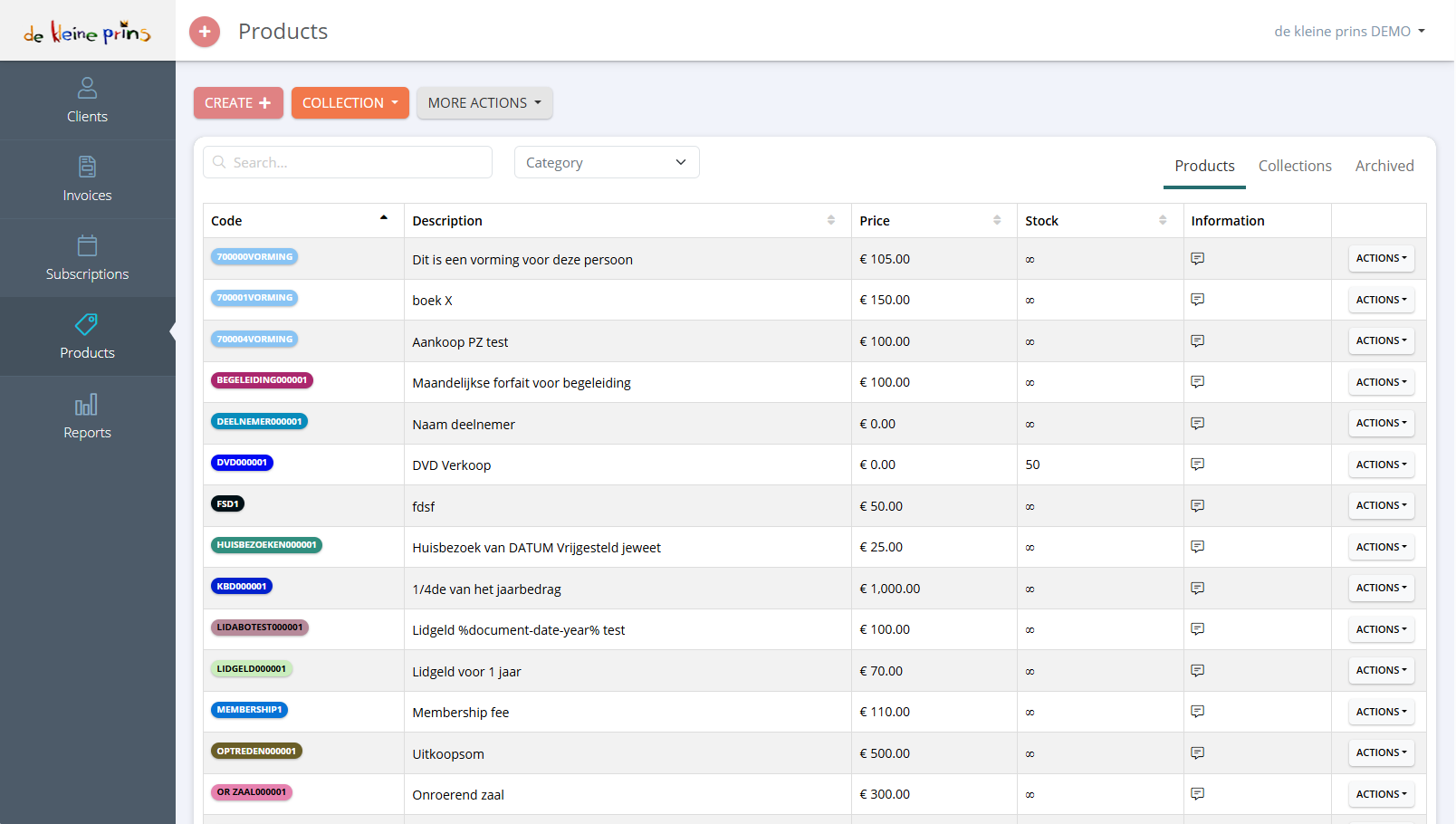
- Create: a new product (part 2). Collection: a group of products you put on an invoice together (part 4). More actions: import and export (part 5).
- The search field and the filter by Category.
- The tabs Products, Collections and Archived.
- The columns: Code (a short, unique code you choose yourself), Description (what appears on the invoice), Price (unit price), Stock (only useful if you sell goods; ∞ means unlimited) and Information (internal notes).
- On each product the Actions button: edit, copy, archive.
Part 2: creating a product
Click Create. The Create Product window opens in its simple form (description, price and stock). Switch on More options at the bottom left to see all fields:
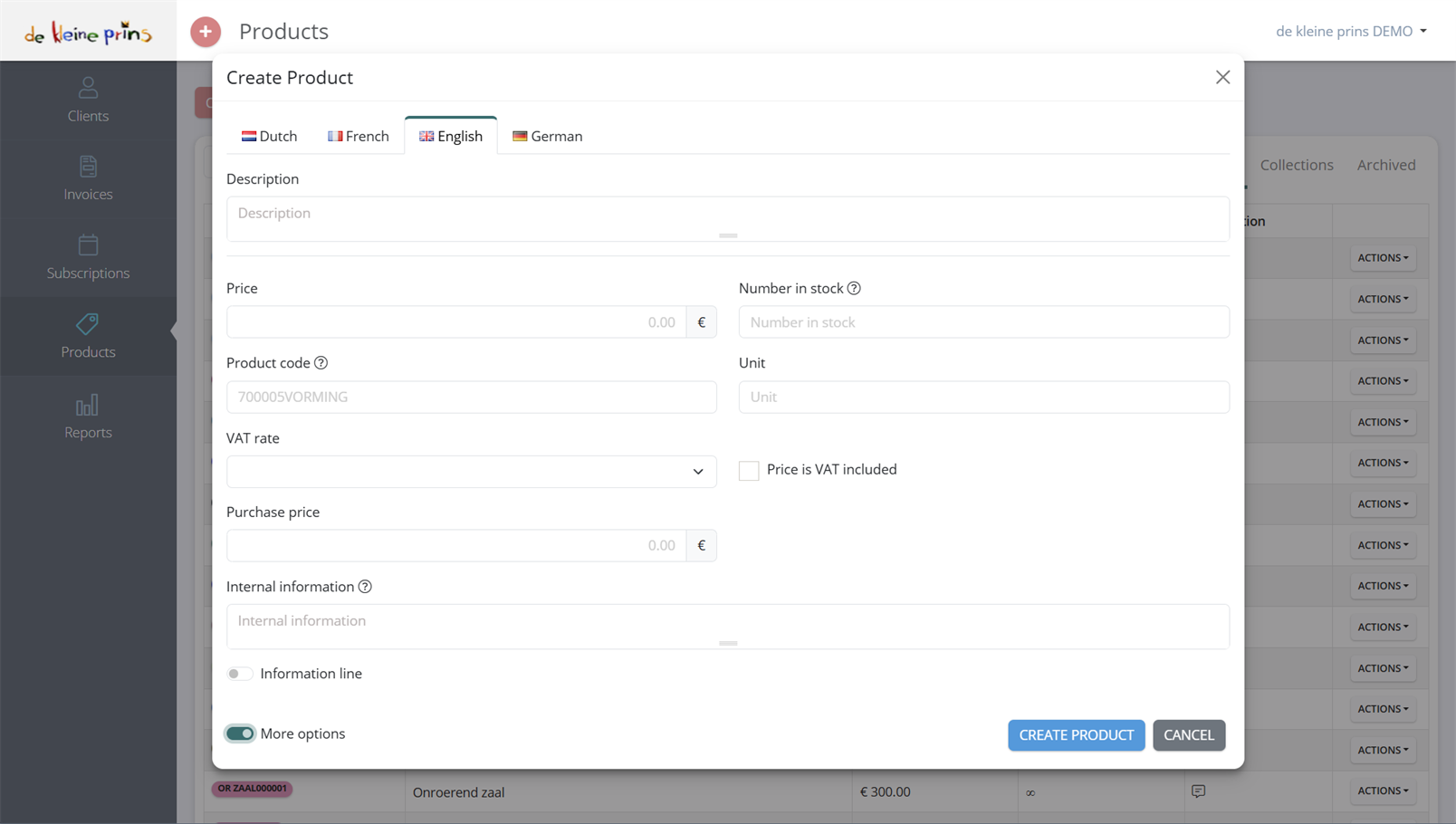
- Description. This is what your client reads. Be concrete: “Membership fee season 2026-2027” is better than “Membership fee”. You can still add to the description on the invoice itself (e.g. the member’s name). Above the field are tabs Dutch, French, English and German: fill in the translation for products you invoice to clients in other languages (course part 15).
- Price. By default excluding VAT; with the tick box Price is VAT included you enter a price including VAT, handy if you communicate a participation fee of 25 euros, for instance. Do that consistently for all products. You may leave Purchase price empty.
- Number in stock. Only useful if you sell goods; empty means unlimited.
- Product code. Short and recognisable, e.g. MEMBERSHIP, HALL-DAY, WORKSHOP-CLAY. The Rose proposes a code; you may overwrite it. The code does not appear on the invoice, but helps you search.
- Unit (optional): piece, hour, day, person.
- VAT rate. Choose the rate that belongs to the service; under More options… in the rate list you also find the exemption codes, such as VA - Exemption due to exempt activities (course part 2). This is the moment to get it right: every invoice that uses this product takes it over.
- Internal information. A note for yourselves, shown in the Information column of the overview and not on the invoice.
- Information line. Switch this on for a “product” without amount that you only use as an explanatory line on invoices (course part 5).
Part 3: the right VAT rate per product
This is the substantive heart of this part. The rate depends on what you supply and on your non-profit’s status (see course part 2). Some typical cases for non-profits, by way of orientation:
- Membership fees of a non-profit association are usually exempt (art. 44, § 2, 11° of the Belgian VAT Code), provided it is a genuine association that represents the collective interests of its members. Then: no VAT, with the exemption mention.
- Participation in a sports activity, a course, a cultural performance of a non-profit: usually exempt (art. 44, § 2, 3°, 4° and 9°), but the conditions differ per activity.
- Hire of a hall is in principle exempt as letting of immovable property, but hire with services (drinks, catering, staff) or hire of movable equipment is taxed at 21 %.
- Sponsorship and advertising are taxable services at 21 %, even for an exempt non-profit, once they exceed the small-enterprise threshold.
- Sale of food and drink during an activity: taxable (6 %, 12 % or 21 % depending on the product), unless it is an occasional fundraising activity that can be regarded as exempt (art. 44, § 2, 12°).
This list is deliberately an orientation, not advice: the exemptions of article 44 are subject to conditions and the assessment depends on your concrete situation. If you create a product and are not sure about the rate, ask your file manager before you invoice. A wrong rate on one product repeats itself on every invoice.
Part 4: collections and custom prices
- Collections. If you often put the same combination of products on one invoice (e.g. membership fee + insurance + club kit), make a collection of it via the Collection button: a product list (the lines separately on the invoice), a combined product (one line with the sum) or a combined product with fixed price. One click and all lines are on the invoice.
- Custom prices per client. If a particular client pays a different price for the same product (a municipality with a framework contract, a partner association with a discount), you fix that price with the client. The Rose applies it automatically when you invoice that client.
Part 5: importing and indexing
- Importing from Excel. Just like with clients: download the sample file under More actions, fill in the columns and upload. Handy if you start with a long price list.
- Indexing. If at the start of a season you raise all your prices by the same percentage, you can do that in one go for all products (see the supplier’s help centre). Do this before you create the new membership invoices, not after.
Tip: feel free to change a product’s description from year to year (“Membership fee 2026-2027” → “Membership fee 2027-2028”); existing invoices keep their old description.
State of the regulations: September 2026.
Next step: in course part 5 you create your first invoice.
The screenshots on this page show the English interface of our demo file in The Rose.