
Course The Rose - setting up your organisation (#2)
Before you create your first invoice, check once that your organisation’s details are correct. Those details end up on every invoice, and once an invoice has been sent, a mistake in them can only be corrected with a credit note. For our clients we have already filled in the basics when creating the account; this part helps you check that everything is right and shows where to change something.
You find all settings by clicking the name of your organisation at the top right and choosing Settings. They are divided into tabs: Enterprise Data, Options, Reminders, VAT, Email, Custom fields, Advanced and Website Layout. We go through what matters for your invoice, in the order in which it appears on the invoice. Two things are not under Settings but are separate items in the account menu: Modules (which functions are switched on, course part 12) and Layouts (what your documents look like, course part 14).
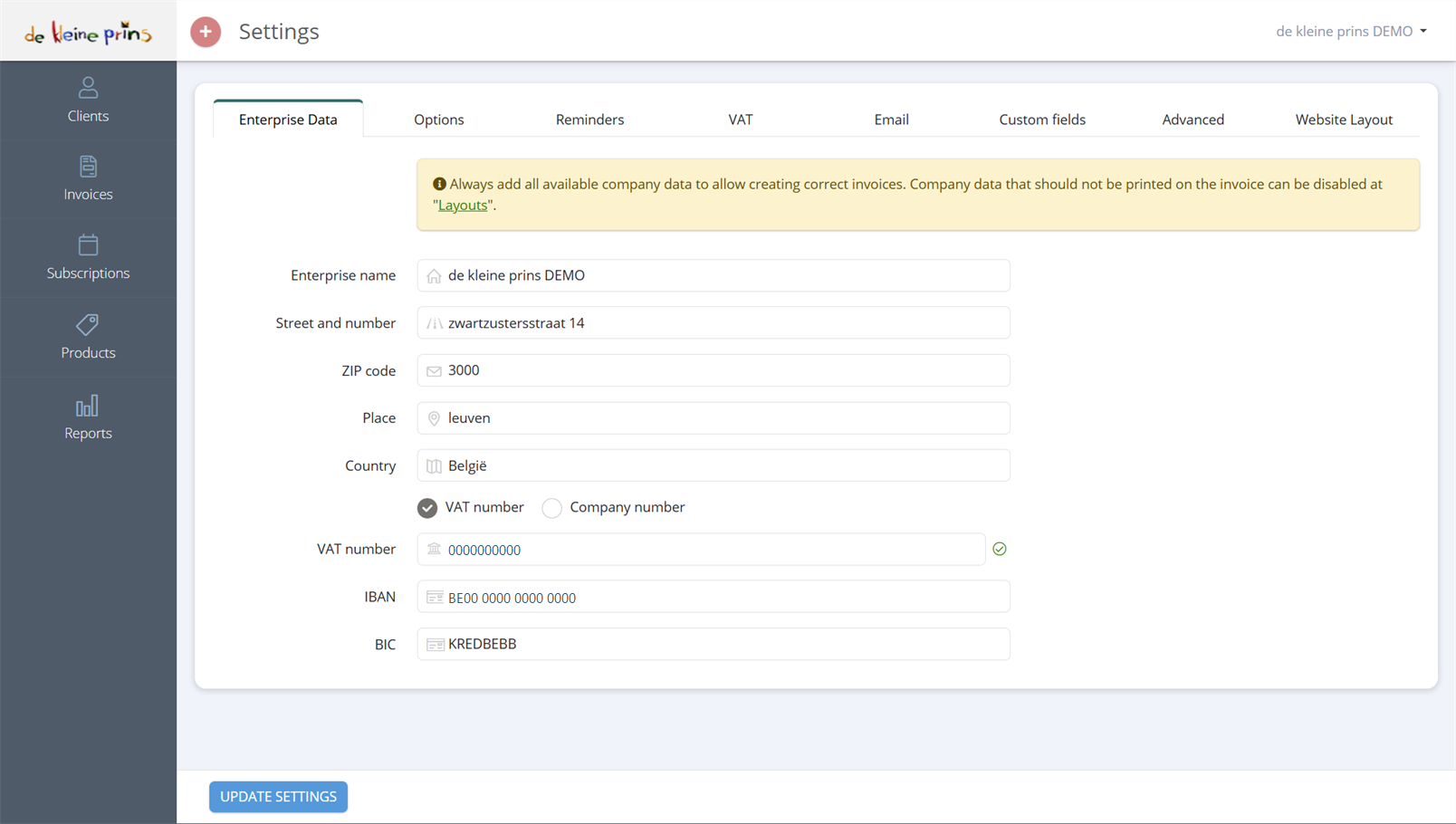
- The tabs of Settings; Enterprise Data is open.
- The company details as they will appear on your invoices: name, address, country, VAT or company number, IBAN and BIC.
- Update settings saves; nothing changes until you click it.
Part 1: your non-profit’s details
The Enterprise Data tab holds Enterprise name, Street and number, ZIP code, Place, Country, the choice between VAT number and Company number, and your IBAN and BIC. Check the official name of your association, the legal form, the address of the registered office and the enterprise number. These details must match what is in the Crossroads Bank for Enterprises (KBO/BCE). Details you do not want to show on the invoice you disable in the layout, not here.
Why this matters so much: a Belgian non-profit association (vzw/asbl) is legally required to state on all its documents, including invoices, its name, legal form, the address of its registered office, its enterprise number and the words “register of legal entities” (RPR/RPM) with the seat of the competent enterprise court (art. 2:20 of the Companies and Associations Code). If those details are correct in the settings, The Rose puts them on every invoice automatically. If the RPR mention is missing from your layout, add it in the layout editor (see course part 14).
Part 2: your VAT status
This is where most questions come from, and where a mistake has the most expensive consequences. A non-profit is in one of three situations:
- Subject to VAT. Your non-profit carries out transactions on which VAT is due (e.g. sale of food and drink, hire of equipment, advertising for sponsors). You have a VAT number, charge VAT on your invoices and file periodic VAT returns. On each invoice line you choose the correct rate: 21 %, 12 %, 6 % or 0 %.
- Exempt. Many non-profits only carry out transactions exempted under article 44 of the Belgian VAT Code: socio-cultural activities, sport, education, youth work, care… You then charge no VAT, but your invoice must refer to the provision granting the exemption (e.g. “Exempt from VAT under art. 44, § 2, 3° of the Belgian VAT Code”). That is a mandatory mention (Royal Decree no. 1, art. 5).
- Mixed. Your non-profit does both: exempt and taxable transactions. Then it depends per invoice line on what you are charging for.
There is also the exemption scheme for small enterprises: if you carry out taxable transactions but your annual turnover from them stays below the threshold of EUR 25,000, your non-profit can opt not to charge VAT (art. 56bis of the VAT Code). A mention on the invoice is mandatory here too (“Special exemption scheme for small enterprises”).
What do you set in The Rose? On the VAT tab:
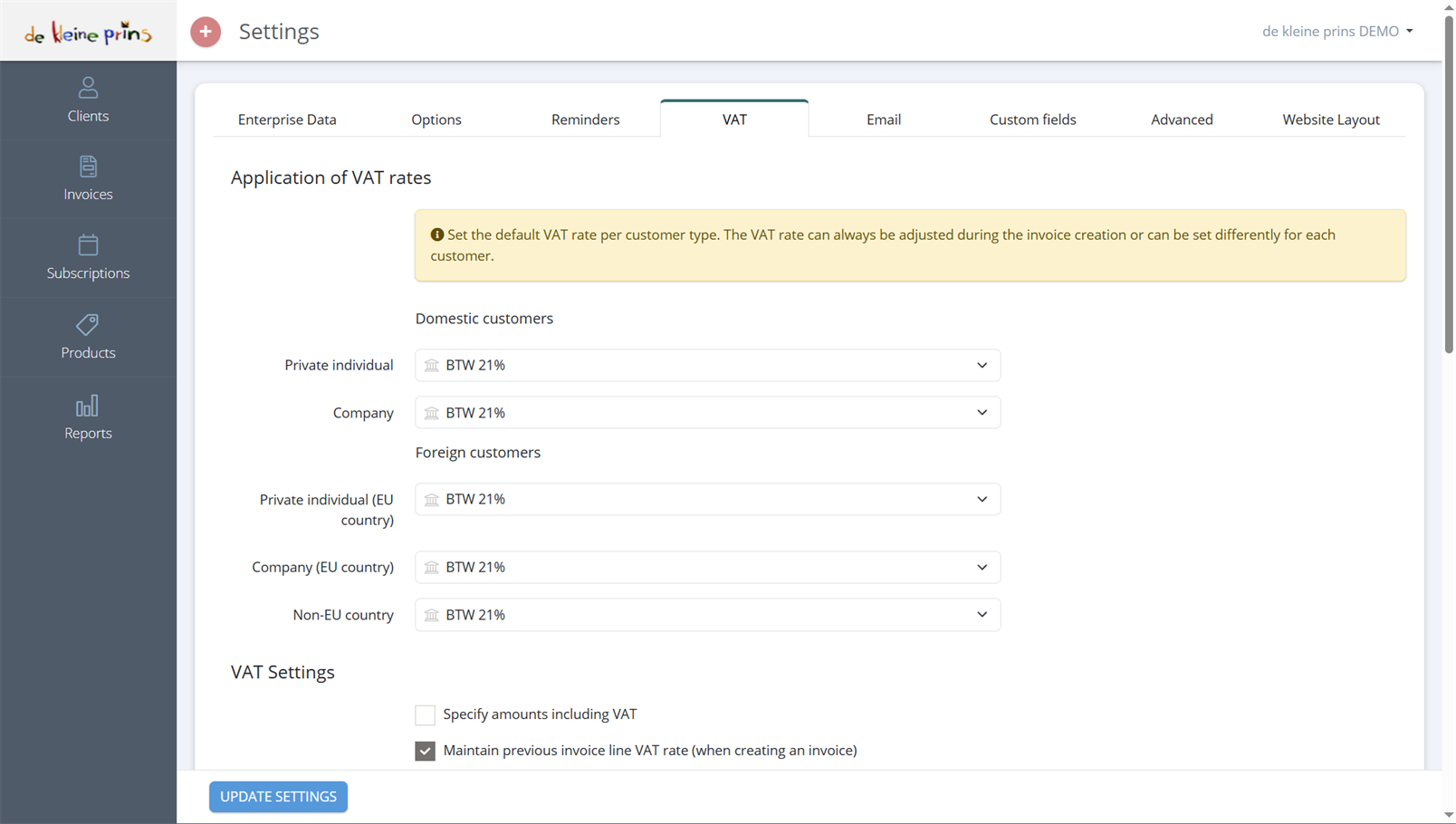
- Under Application of VAT rates you choose the default rate per customer type: domestic Private individual and Company, and for foreign customers Private individual (EU country), Company (EU country) and Non-EU country. The rate remains adjustable per invoice and per client.
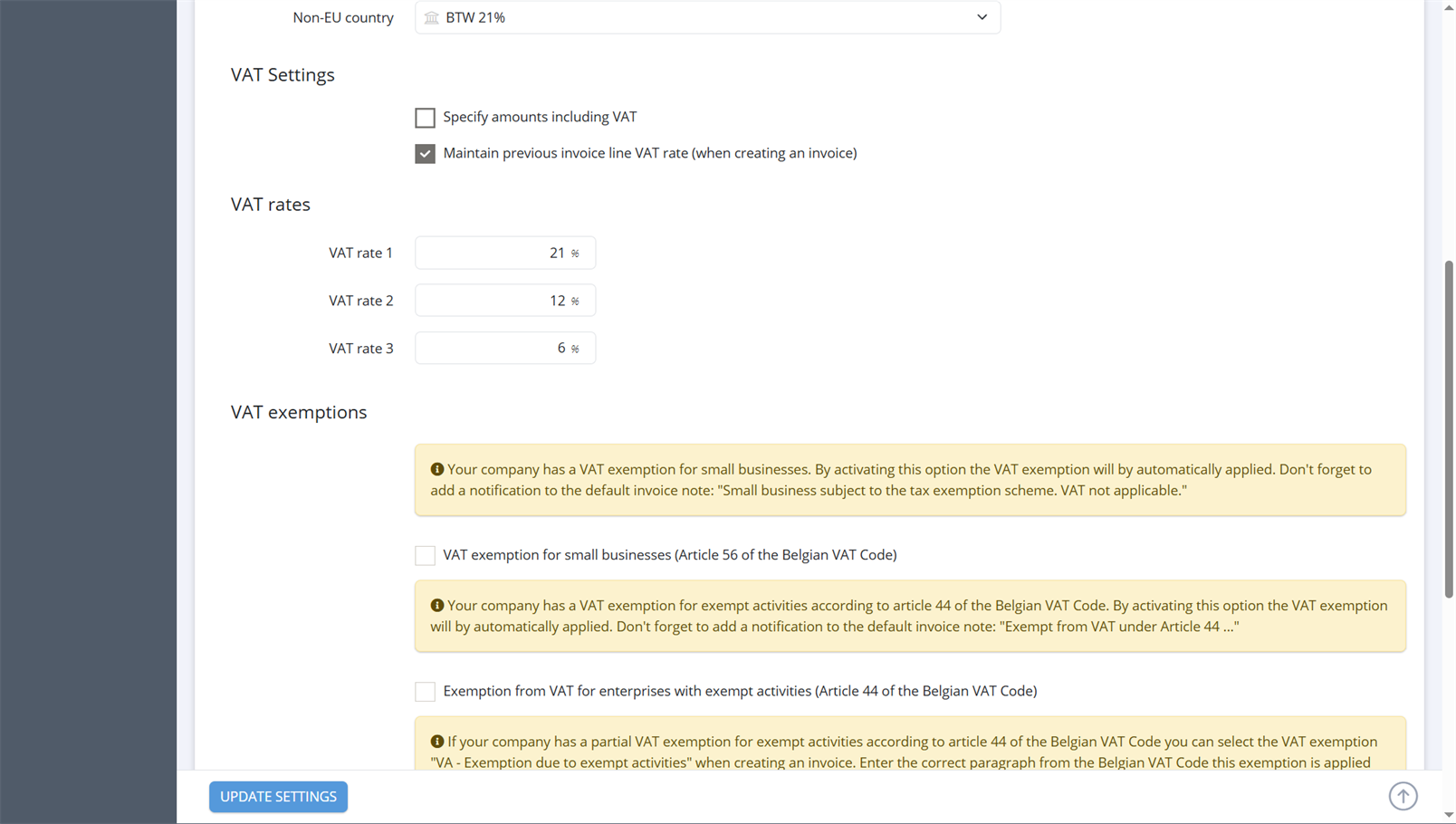
- Under VAT exemptions there are two tick boxes: VAT exemption for small businesses (Article 56 of the Belgian VAT Code) and Exemption from VAT for enterprises with exempt activities (Article 44 of the Belgian VAT Code). Tick one and The Rose applies the exemption automatically to all invoices. For article 44 you enter, in the field Exempt from VAT under Article 44, the paragraph your non-profit relies on.
- Are you mixed? Then tick no general exemption, but choose the VAT rate VA - Exemption due to exempt activities (under More options… in the rate list) on the exempt lines of the invoice. The paragraph you entered here is then added to the invoice automatically.
- The Rose itself reminds you that the exemption mention must also be in the default note of your invoice (Options tab, see part 4).
- Specify amounts including VAT you tick if you prefer to work with prices including VAT (part 4).
For our clients we set this up at the start. Not sure about your non-profit’s status, or is something changing in your activities? Contact your file manager first, before you change anything. The VAT status is a decision with consequences for your returns, not just a tick box in a program.
The top of the VAT tab, with the default rate per customer type:
Further down the same tab, the part that matters most for a non-profit, VAT exemptions, with the two tick boxes and the explanatory notes:
Part 3: invoice numbering
Each invoice gets a unique, sequential number. That is a legal requirement (Royal Decree no. 1, art. 5: “a sequential number according to one or more series”). The Rose numbers automatically; you only decide the format. The usual choice is one series per year, such as 2026-0001, 2026-0002… At the start of a new year the counter restarts with the new year in front. You arrange that on the Advanced tab under Fiscal year and annual renumbering: the Start date fiscal year and the number of the first invoice of the new fiscal year, in which YYYY stands for the year.
Two rules that save you a lot of trouble:
- Leave the numbering to the program. Never change an invoice number by hand, not even to close a gap. A gap in the numbering is explained by a credit note or a deleted draft; a duplicate or altered number is a problem in a VAT audit.
- Use one series unless you have a good reason for more (e.g. a separate series for a department). More series means more chance of mistakes.
Part 4: payment term and payment details
- Default payment term. The number of days a client gets to pay, counted from the invoice date. Thirty days is customary; for membership or participation fees you often choose shorter. The Rose uses this to calculate the Due date on each invoice and so knows when an invoice is overdue (important for the reminders in course part 9). You set it on the Options tab under Instalments (Invoice payment term), with the choice to Make payment term coincide with the end of the month. You can deviate from it per client (course part 3).
- Account number. The IBAN (and BIC) of the non-profit on the Enterprise Data tab. Check it letter by letter: a wrong account number on hundreds of membership invoices is a disaster.
- Structured message. Switch it on: the option Structured Message under Modules, and on the Advanced tab the tick box Automatic generation of structured message during invoice creation. The Rose then generates a unique message of the form +++002/0260/00806+++ with each invoice. Whoever uses that message when paying links their payment automatically to the right invoice, in The Rose and in the accounts. That saves us and you a lot of searching.
- Default note. On the Options tab, under Default Note, is the fixed closing sentence at the bottom of each invoice (“You are kindly requested to fulfil the above amount within the predefined payment period.”), separately for invoices and credit notes and in four languages. For an exempt non-profit the exemption mention belongs here too.
Part 5: email settings
You send invoices from The Rose by email (course part 6). So check, on the Email tab:
- Send with. The simplest choice is Forwarding address: the email leaves from an address of The Rose, with your non-profit’s name in front, and replies end up at the address under Send answers back to. Choose an address there that someone actually reads. The alternatives (Own mailbox via Outlook, Gmail or SMTP, or Own email address (DNS)) let the email leave from your own address; that is the solution if your emails end up in spam (course part 6).
- Backup email address. An address of your non-profit that receives a BCC copy of every send, optionally Only for invoices.
- Email subject and Email texts. Per document type (invoices, credit notes, reminders) and in four languages. You can use variables such as %client-name%, %document-number%, %due-date%, %total% and %structured-message%, so that each email is personal without you typing anything. With Add you create extra texts for recurring situations, e.g. a separate text for membership fees.
- Check if the email has been opened by the recipient. Tick this and a sent invoice gets the status Read as soon as the client opens the email.
When sending, The Rose automatically picks the language set for the client.
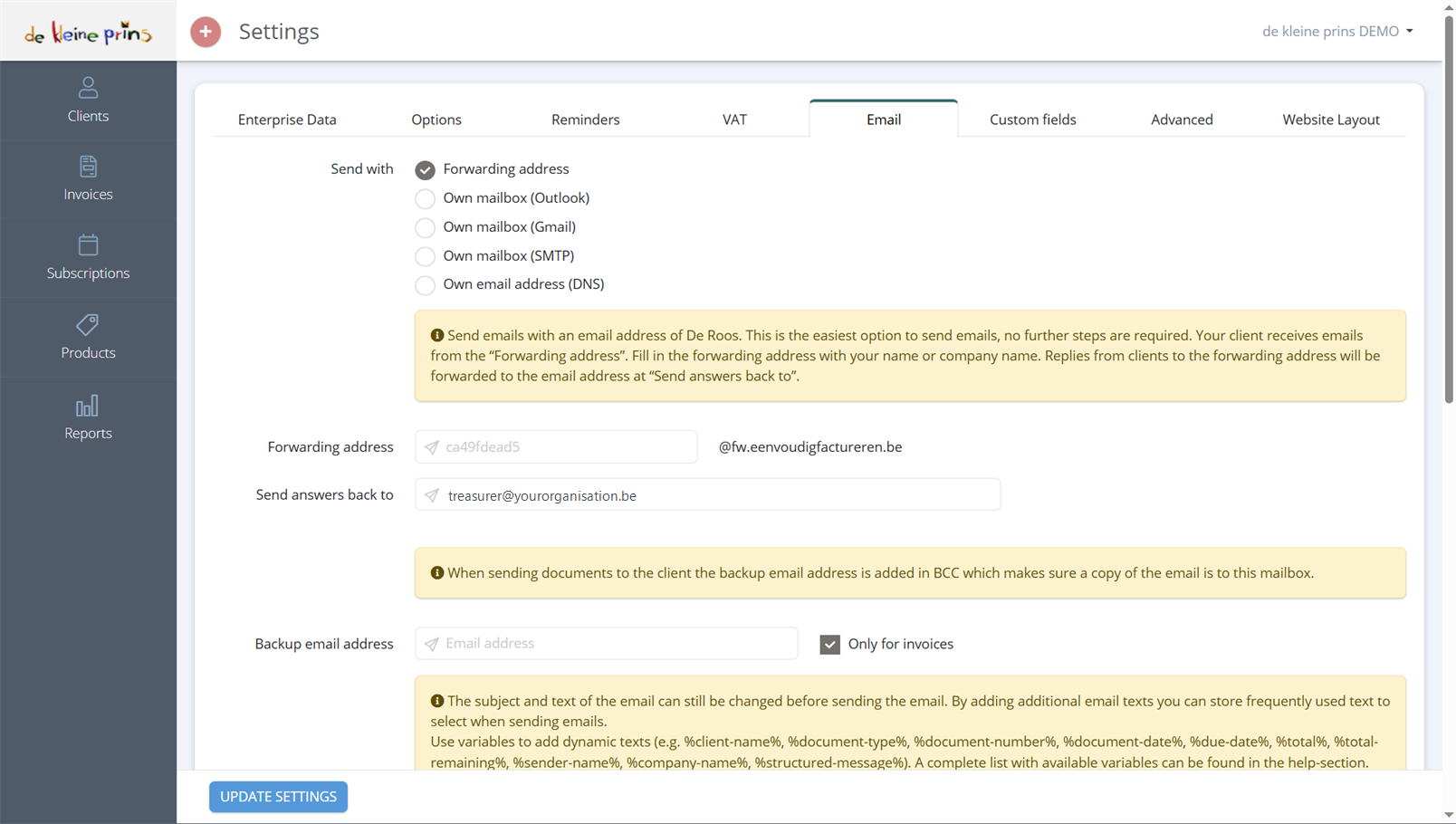
- Send with: in our demo file the Forwarding address is used.
- Send answers back to: the address that receives the clients’ replies.
- Backup email address: the BCC copy, here limited to invoices.
- Below this (not visible here) follow the email subject and texts per document type and the email layout.
Part 6: keeping invoices
Invoices and credit notes must be kept for ten years, counted from 1 January of the year after they were issued (art. 60 of the Belgian VAT Code, term extended from seven to ten years by the law of 20 November 2022). The Rose keeps all your documents for as long as your account exists, and through our link every invoice is also in the accounts. If you still want your own copy, make a backup; how to do that is in course part 16.
State of the regulations: September 2026. VAT rules change; when in doubt, ask your file manager.
Next step: in course part 3 you set up your clients.
The screenshots on this page show the English interface of our demo file in The Rose.