
Course The Rose - quotations, purchase orders and delivery notes (#12, optional)
From here the extras begin: functions not every non-profit needs. If you work with quotations, for instance for hiring out your hall, a tailor-made training for a municipality or a project with a funder, you create them in The Rose just like an invoice. The client can approve online, and an approved quotation you convert to an invoice with one click: nothing typed twice, no difference between what was agreed and what was invoiced.
Part 1: activating the module
Quotations, order forms and delivery notes are modules you switch on or off. Click the name of your organisation at the top right and choose Modules. The page has two lists, each with an Activate or Disable button per line:
- Components: Quotations, Order Forms, Payment Requests, Delivery Notes, Subscriptions, Receipts, Custom document, Purchases, Projects, Bank, Reports and Products. A component adds its own menu item or document type.
- Options: Structured Message, Billing in foreign languages, Foreign Currency, Automatic reminders, Cash Discount, Online signature, Advances, VAT declaration renovation, SEPA Direct Debit, Client Specific Settings, Automatic Completion, Ledger Accounts and Dropbox / Google Drive. An option adds something to existing screens.
Switch on Quotations; the item then appears in your menu. The same goes for the other document types in this part. Only switch on what you use: every extra menu item is a place where someone can do something wrong. Disabling does not delete data; it is only hidden until you switch the component back on. Leave the component Purchases off: purchase invoices belong in The Lantern (course part 11).
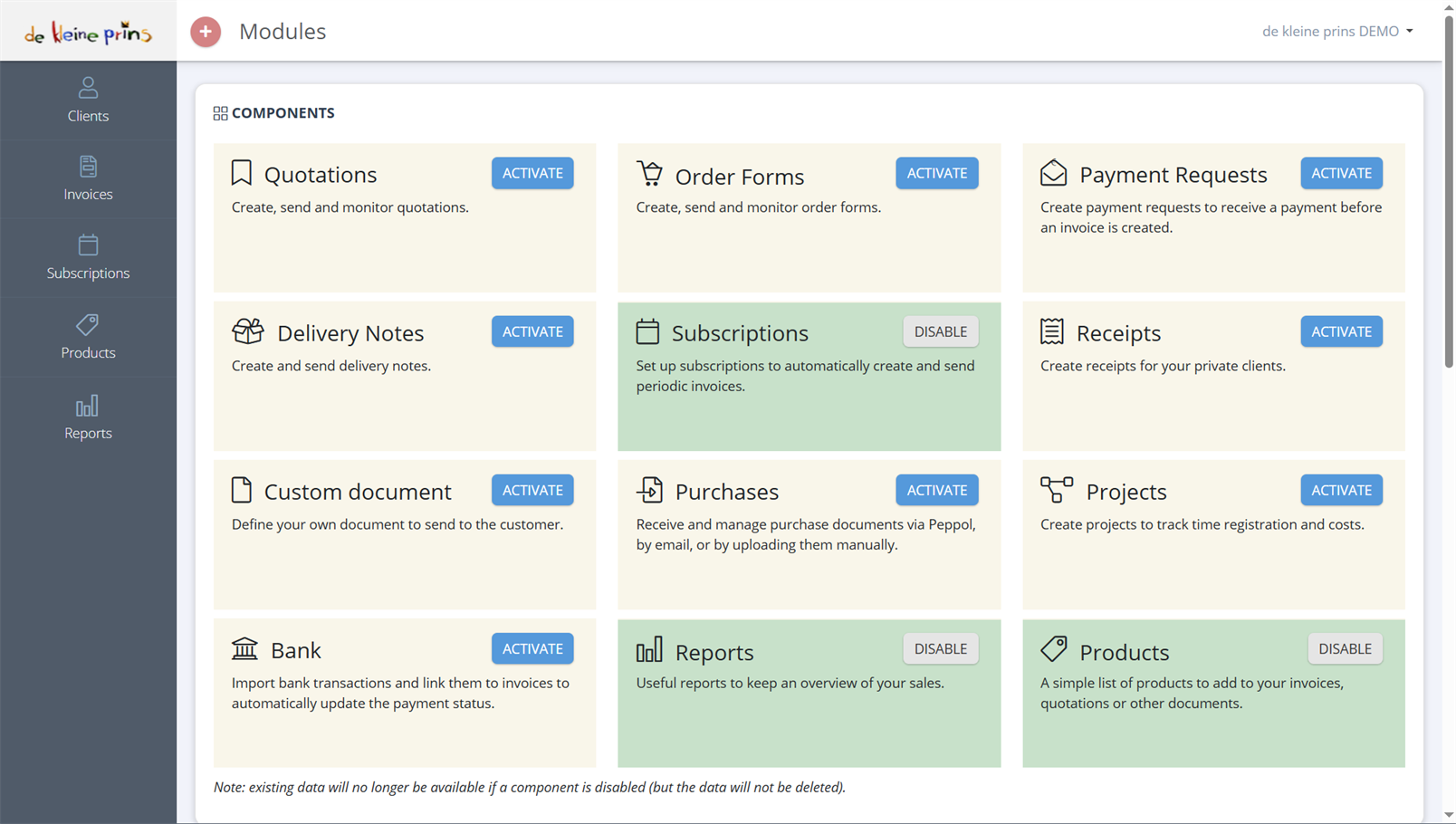
The Components list; green cards are active (Subscriptions, Reports, Products in our demo file), the others show Activate. The Options list follows further down the page.
Part 2: drawing up and sending a quotation
You create a quotation like an invoice (course part 5): choose client, add products, fill in quantities and prices. Two differences:
- A quotation has a validity period: the Due date here is the date until which your offer is valid. By default e.g. 30 days; adjustable per client (course part 3).
- A quotation has its own number series (2021-0009 in the demo file) and does not count in your invoicing or your VAT. It is a proposal, not a sale.
You send with Send, by email (quotations cannot go via Peppol). The email contains a link with which the client can approve or reject the quotation online. If you want a signed quotation, add a signature block; the client then signs digitally on their screen (see the articles on the signature block and online signatures).
Part 3: following up and converting
This is what a quotation looks like after the client approved it:
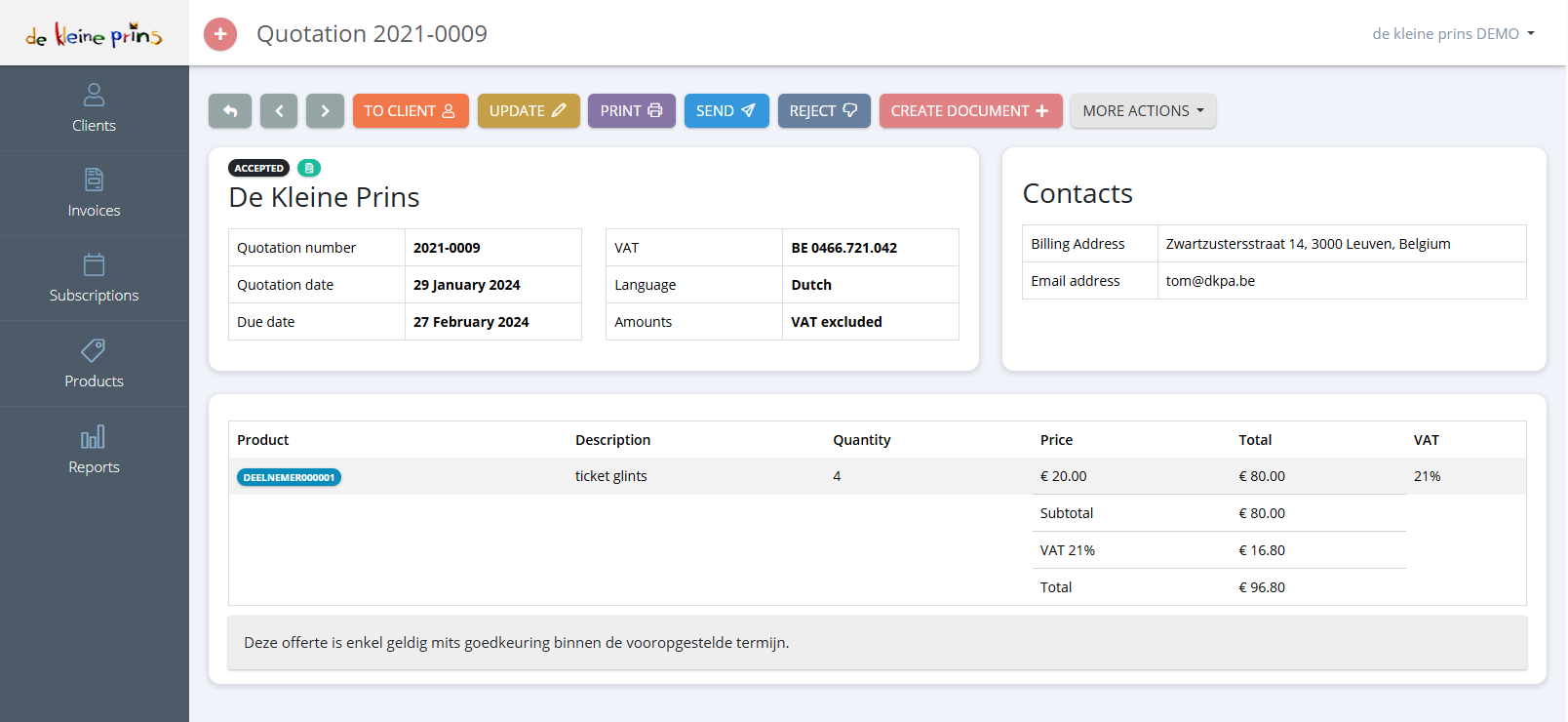
- The label Accepted with the icon next to it: the client approved online. Other statuses are open, rejected and expired.
- The button bar: To client, Update, Print, Send, Reject (if the offer does not go ahead after all) and Create document.
- Quotation number, Quotation date and Due date (the validity of the offer).
- The lines, with the same VAT logic as on an invoice.
- The closing sentence from your layout (in our demo file still in Dutch: “This quotation is only valid if approved within the stated period.”).
Just like with invoices, the quotation overview also has an Actions button on each row with the same possibilities (open, update, send, print, convert), so you do not have to open the quotation first.
Converting to an invoice: click Create document (or choose the action in the overview) and choose the invoice. The Rose creates a new invoice with all lines of the quotation, linked to the quotation. Check quantities (has anything changed since the proposal?) and click Create invoice. The quotation remains as proof of the agreement.
Is the service delivered in parts (e.g. a programme of three training days)? Then you create several invoices from the same quotation, each for the part delivered; or you work with an advance invoice and a final invoice (course part 16).
Part 4: purchase orders and delivery notes
These two come from trade, but non-profits that deliver goods (printing, equipment, publications) or deliver services in phases can use them:
- A purchase order is the confirmation to your client of what they ordered, before you deliver. You later convert it to a delivery note or an invoice.
- A delivery note confirms what you actually delivered, without price or with price. Several delivery notes can be merged into one invoice; a partial delivery is also possible.
Both work like a quotation: create, send, convert via Create document.
Not to be confused with the purchase order number field on your invoice (course part 5): that is the number of the purchase order your client gave you (typically a municipality or a school), which must be on the invoice to get paid.
Part 5: custom documents and payment requests
- A custom document is a document in your house style without accounting consequences: a certificate of participation, a booking confirmation, a price indication that is not a quotation. Handy because it reuses your layout and client details.
- A payment request asks for a payment without issuing an invoice, e.g. a deposit for the hall or an advance on a registration you invoice later. Note: a payment request is not an invoice and does not replace one; an invoice still follows for the service itself (or, for a donation, no invoice but a tax certificate through the accounts).
Next step: course part 13 on subscriptions, for invoices that recur every year or every month.
The screenshots on this page show the English interface of our demo file in The Rose.