
Course The Lantern - settings and administration (#15, optional)
Finally: under the bonnet. Under Settings you find the email addresses of your mailboxes, the users of your file and a few options that make your work noticeably lighter — automatic forwarding, automatically paid suppliers. Set once, it pays off for years — and most of it you set once and never look at again.
Part 1: the file settings
You open the Settings via the menu under your name, top right. The screen has four tabs:
- General — on the left the general information about the file, on the right the input channels (see part 2).
- Company details — your organisation’s own details: name, address, company number. If something is wrong here (a move, a name change), tell your account manager.
- Users — who has access to the file (see part 4).
- Pay and approve — the approval processes from course part 14 AND the automatically paid suppliers (part 3). This tab is only visible to users with the Administrator profile.
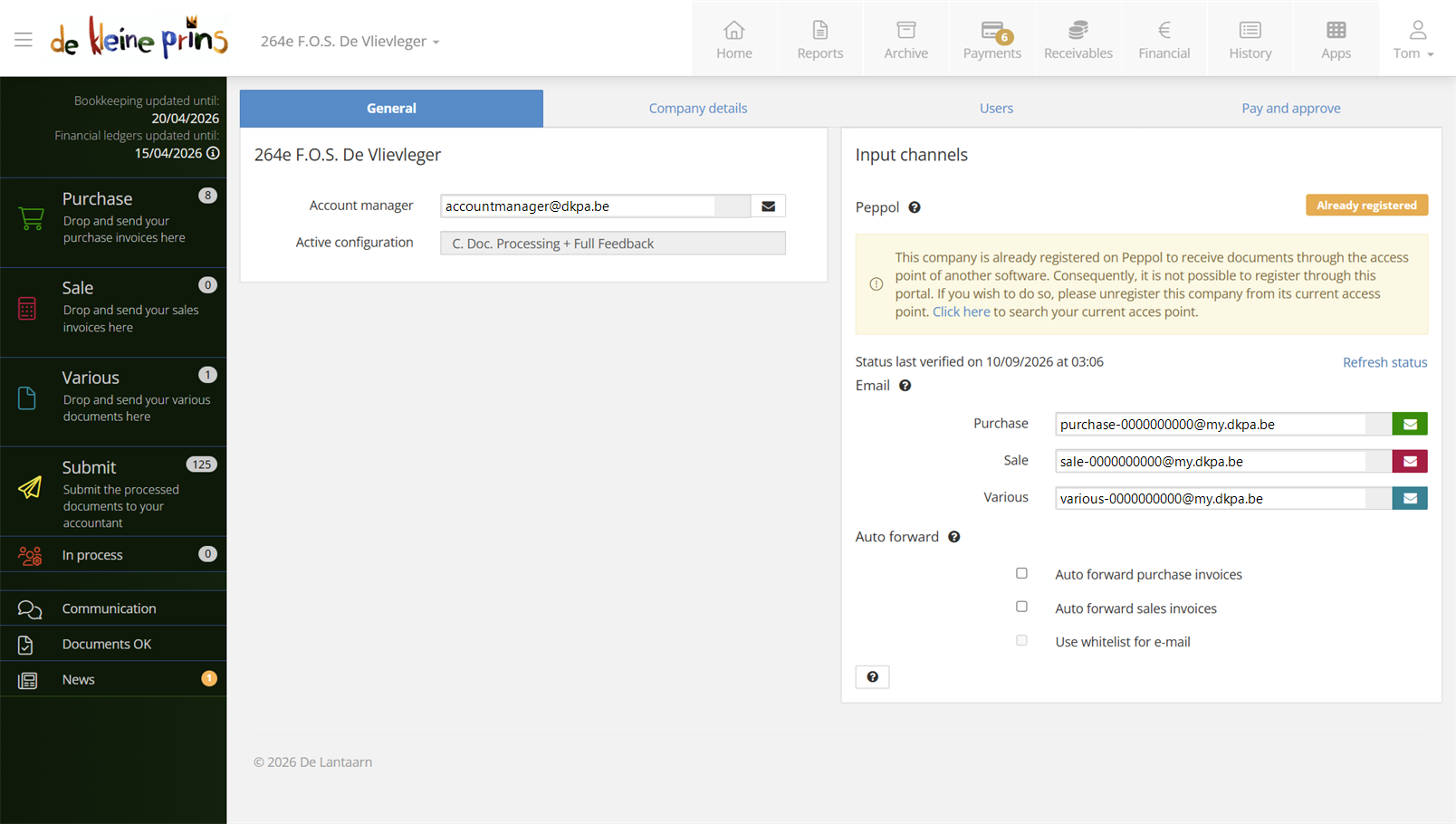
- The four tabs of the settings.
- The input channels: your file’s Peppol registration (course part 3) and the unique email addresses per mailbox.
Part 2: the input channels and auto forward
On the right of the General tab sit the unique email addresses of your mailboxes — the addresses you forward invoices to (course part 3). There is one per mailbox (purchase, sale, various) plus a general address. That general address does upload an email, but does not assign it to a mailbox — you would still have to give the document a place. So preferably use the address of the right mailbox straight away.
You also find the options Auto forward purchase invoices and Auto forward sales invoices here. With auto forward on, a document arriving in that mailbox by email skips the mailbox and goes straight on to the accounts. For sales in particular that is recommended for anyone invoicing with The Rose: those invoices are already correctly drawn up and need nothing further in the sales mailbox — so that intermediate step can go. With purchases you are more careful: there you often still want to add a comment or label before the document leaves (course part 5).
Part 3: automatically paid suppliers
Suppliers that run via direct debit (energy, telecom, insurance) or are always paid by credit card you do not want showing up as “to be paid” in your invoice list — you never pay them yourself, after all. List them with Add a supplier: their invoices then automatically get the status Paid, at the moment you choose — immediately or on the due date. Your invoice list (course part 7) then shows only what genuinely needs your attention.
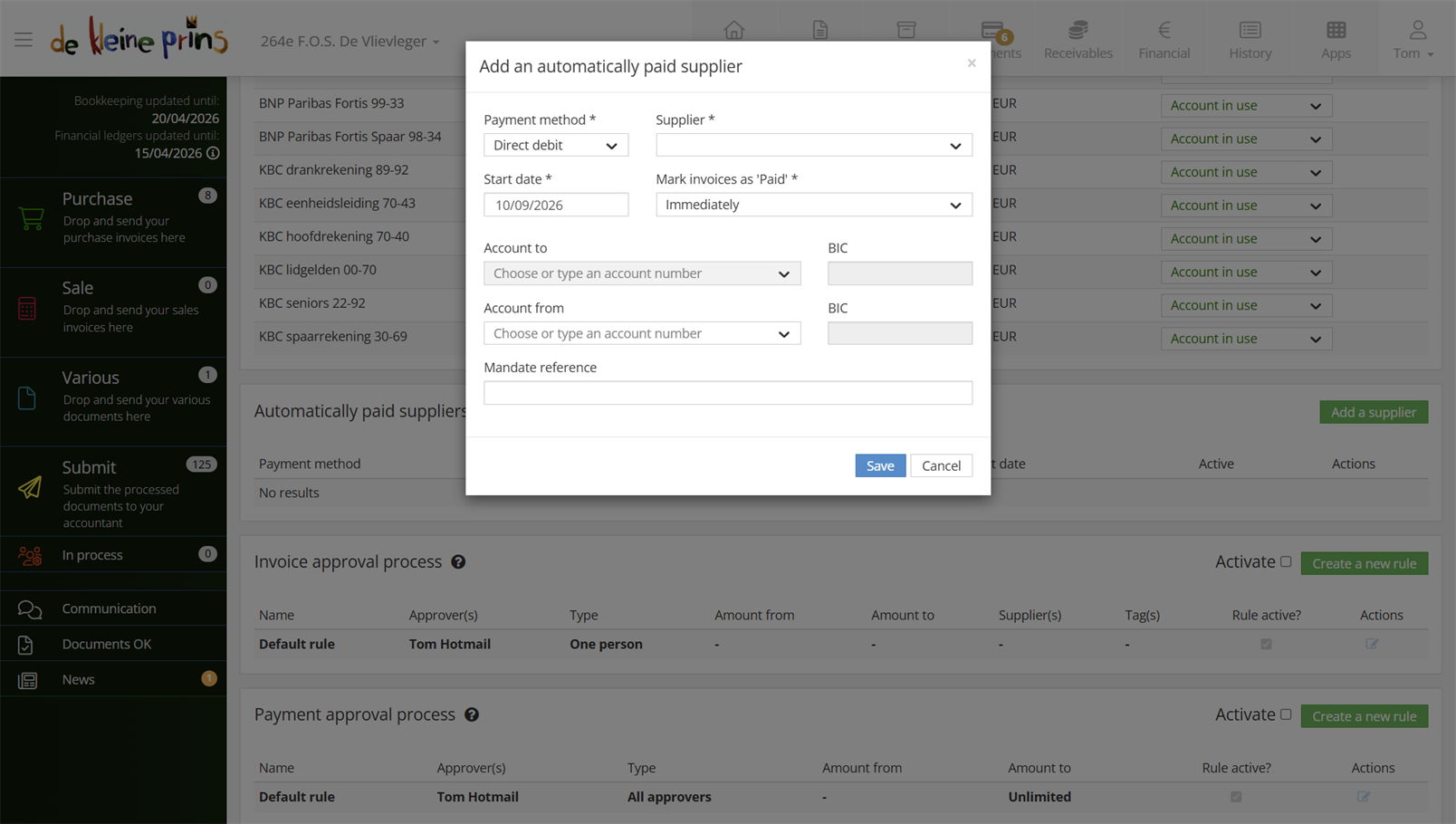
- Adding a supplier: the payment method and the moment the invoice is marked Paid - immediately or on the due date.
Tip: run through this list once a year, at the closing of the financial year for instance. A cancelled direct debit that stays on the list means invoices marked Paid while nothing has been paid.
Part 4: users and access
The Users tab shows who has access to your file — for information only. You request new users with the Request additional user button: your account manager then receives an email with your request and sets the user up. Three habits keep this healthy:
- Every person their own user — no shared logins, so it is always clear who did what (course part 1).
- Two-factor authentication for everyone — this portal holds payment details; that extra step is no luxury.
- Sign leavers off immediately — when a board member or staff member leaves the organisation, let us know and we close the access. Certainly in non-profits, where board mandates change regularly, this is the most forgotten step.
To conclude
And that wraps up the course. You can supply documents through every channel, follow up your payments and your archive, pull reports for your board, and switch on the extras whenever your file calls for them. Two things to remember:
- The basics are small: right mailbox, send, done (course part 2 to 5). Everything else is comfort you add when you are ready for it.
- You are not on your own: your account manager looks over your shoulder, the webinars are there to rewatch, and at the bottom of every part you find the supplier’s articles.
Enjoy The Lantern!
The screenshots show a real file in The Lantern, in the English interface; a few images (the mobile app and the upload flow) still show the Dutch one — the layout is identical. Personal details have been redacted.