
Course The Lantern - the archive: finding documents back (#9)
Every document that has been processed in the accounts can be found in the archive — your digital filing cabinet, always searchable and complete with the accounting details. No more folders sitting at the treasurer’s house, no more “who has last year’s invoice?”: everything in one place, for everyone with access to the file. In this part you learn to search precisely, look at a document up close and download documents when you need them elsewhere.
Part 1: opening the archive
Open Archive in the menu. The documents are divided into the same three categories as the mailboxes in course part 2: purchases, sales and various documents — whatever you once put in a mailbox, you find in the matching archive drawer. The various documents — contracts, policies, subsidy decisions — are here too, ordered by category: the digital equivalent of the classic binder in the cupboard, but searchable and within reach of the whole board. Above each category sit filters to find quickly what you are looking for: by period, counterparty, amount, document number or label. Combine at will — “all purchases from this supplier in this financial year” is a single filter run.
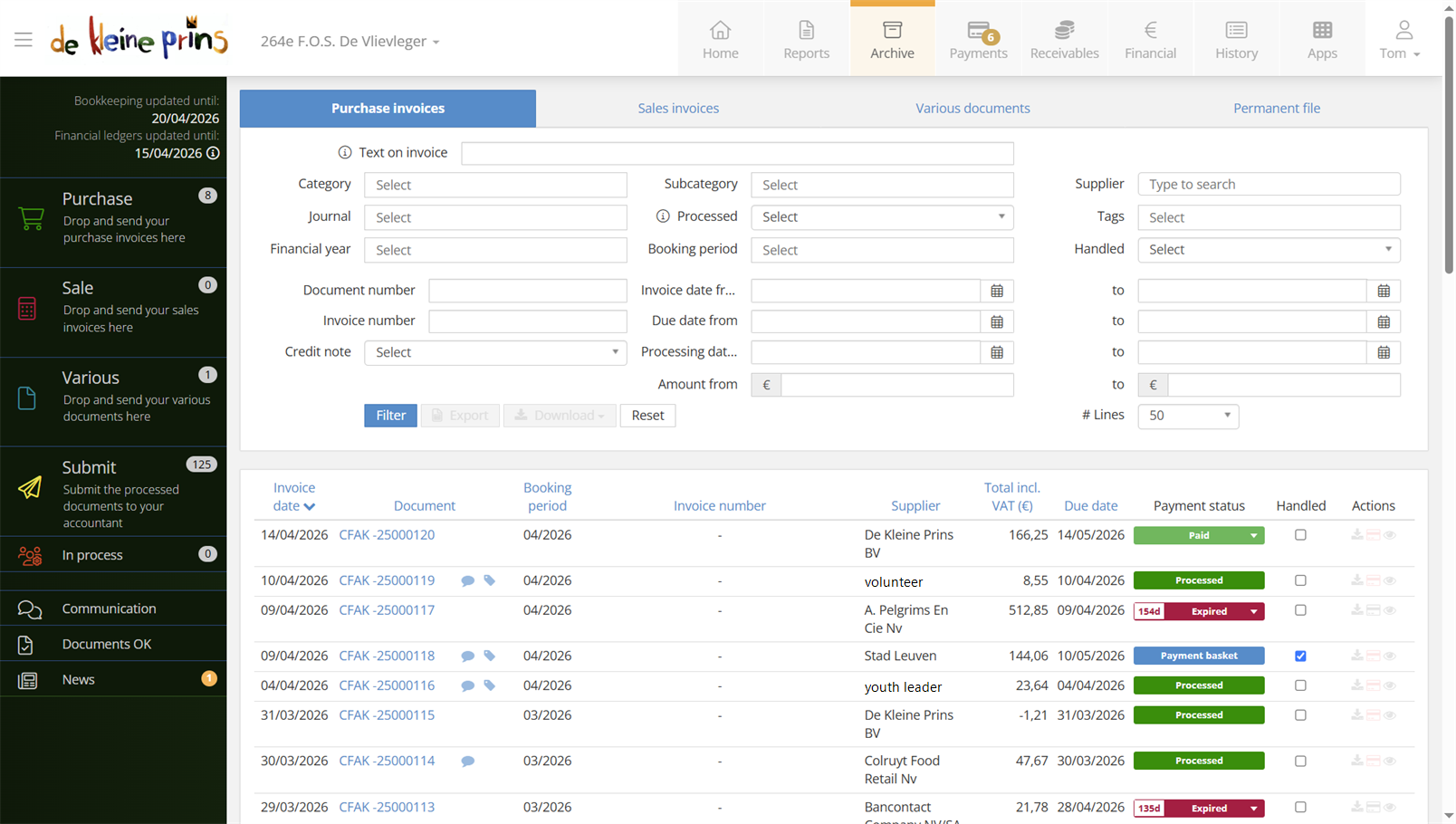
- The filters at the top of the archive.
Part 2: the list and the actions
The list of documents found shows the standard details of each document: date, counterparty, number, amount and payment status. At the end sit the Actions:
- the eye icon to view the document — clicking the number in the Document column works too;
- a button to download the document to your computer;
- the bank card icon to pay the document straight away (course part 7) — handy when you notice while looking something up that an invoice is still open.
Part 3: a document up close
Open a document and you see more than just the image. On the left sits the document itself; on the right the details as they were recorded in the accounts — counterparty, amounts, accounting period — plus everything you gave it along the way: your comment and labels from course part 5, the payment status and any attachments. One screen thus answers the three classic questions at once: what was this again, how was it posted, and has it been paid?
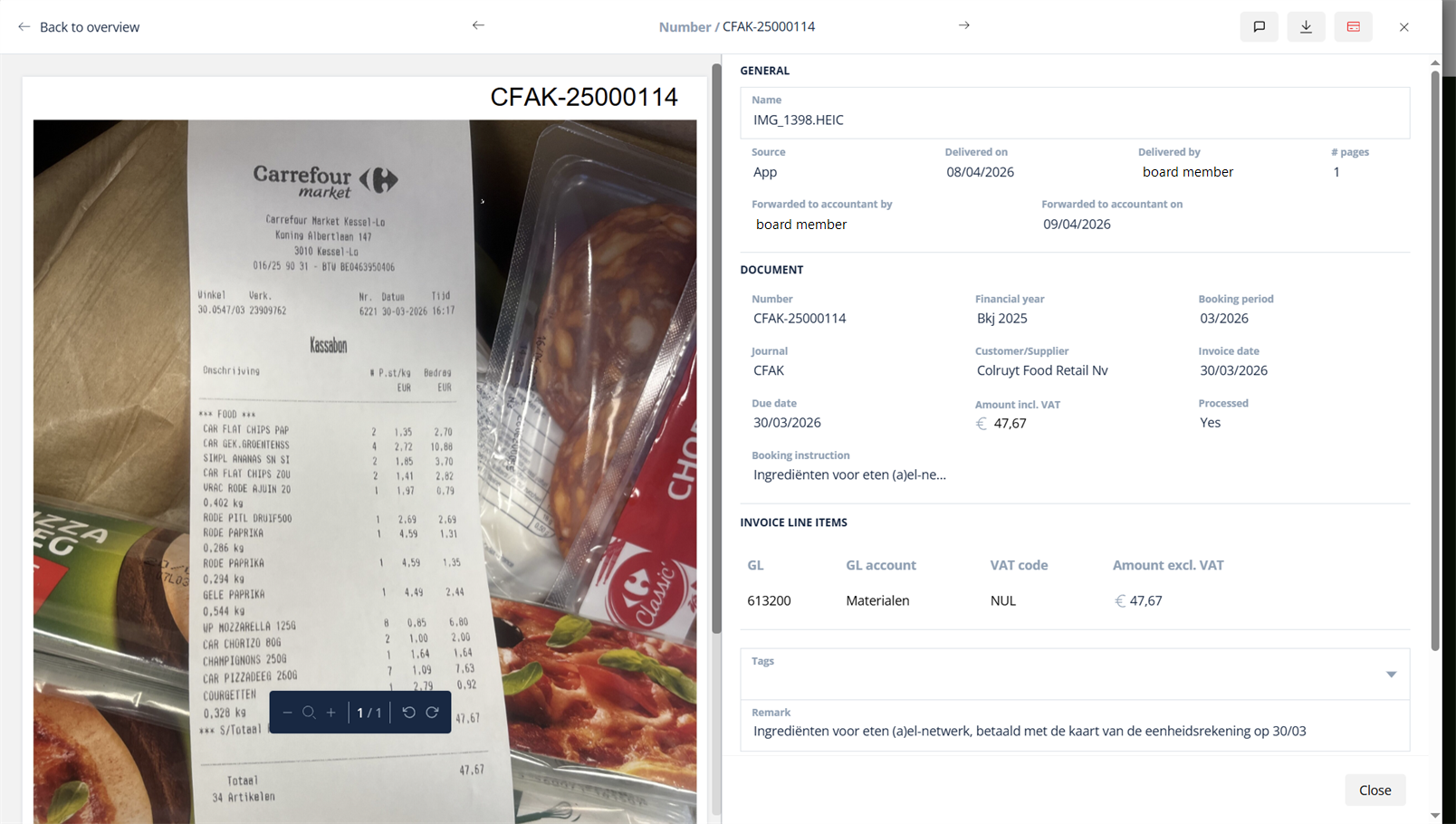
- The document on the left, the accounting details on the right.
- Your comment and labels from course part 5.
- The payment status and any attachments.
Part 4: downloading documents
You download each document individually via the actions in the list. Need a bigger package — all the documents of a financial year for a subsidy file, a tax audit or a handover to a new treasurer — then there is no need to click document by document: the whole archive or a selection of it can be downloaded too. Exactly how is covered in the article at the bottom.
Tip: the archive IS your place of safekeeping — the documents stay there and satisfy the rules as digital evidence (course part 5). So download only when a third party needs the documents, not “just in case” onto a drive of your own.
Next step: finding documents works — time for the figures behind them. In course part 10 you explore Financial and History.
The screenshots show a real file in The Lantern, in the English interface; a few images (the mobile app and the upload flow) still show the Dutch one — the layout is identical. Personal details have been redacted.