
Course The Lantern - paying several invoices: the payment basket and SEPA (#8)
Retyping a stack of invoices one by one in the banking app every month: no need for that any more — and it is the biggest source of typos too. With the payment basket you collect all the invoices you want to pay, and The Lantern turns them into one SEPA payment file that you hand to your bank and authorise with a single signature. In this part you walk through the whole flow: adding to the basket, checking, executing and uploading at the bank.
Part 1: adding invoices to the payment basket
Open an invoice via the bank card icon, as in course part 7. In the payment proposal on the right you now choose Add to payment basket (For SEPA) under Pay later. Run through the proposal before you confirm:
- Invoice amount, Balance and Amount — paying part of it? Adjust the amount.
- Account from and Date of execution — the date can still be overwritten later when executing.
- The Counterparty — and here belongs the golden rule: check the IBAN number carefully. Starting from Archive or History the details are normally right, but the account number you verify at every payment.
- The Communication — choose the right Type: Structured if the invoice carries a structured reference (the supplier then matches your payment flawlessly), otherwise Unstructured with, say, the invoice number.
Click Approve: the payment is waiting in the payment basket. Repeat for all the invoices you want to include — quick work from the pre-filtered invoice list. The document itself gets the status Paid as soon as the payment is included in a SEPA file; later that becomes Processed, once the payment has actually been found on your statements (course part 7).
Part 2: checking the payment basket
Click the Payment basket tab at the top. You see all the prepared payments neatly together — your draft list, so to speak. Editing or removing is still possible here: correct an amount, take out a payment that should wait after all. Nothing is final yet; money only leaves once you authorise the file at your bank.
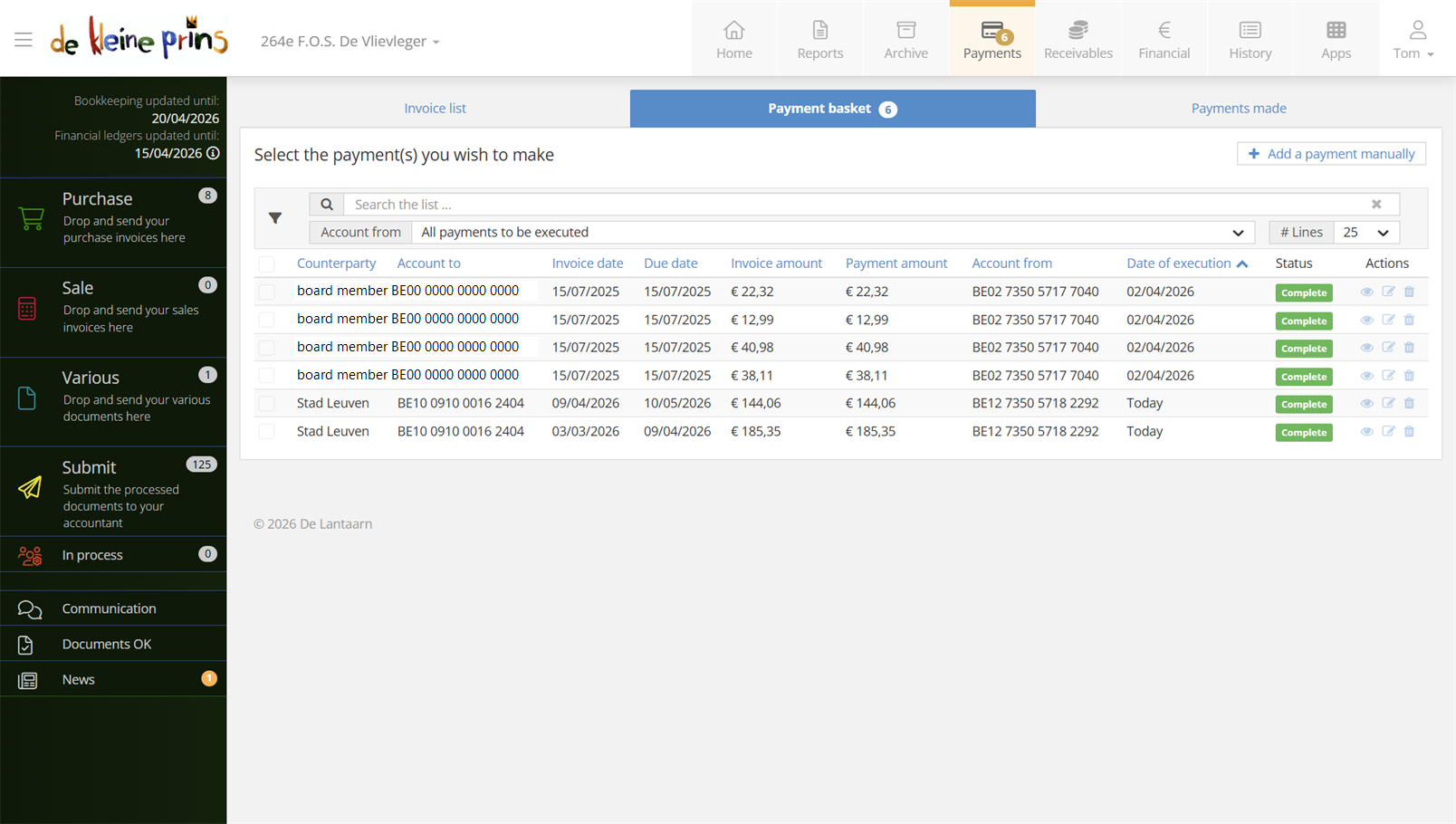
- The prepared payments in the payment basket.
Part 3: executing payments
Select the payments you want to execute with the tick boxes at the front — that may be the whole basket, or a selection. A blue button Execute x payment(s) appears, with the total amount after it: your final check figure before you continue. If that total does not match what you expect, there is one payment too many or too few in your selection.
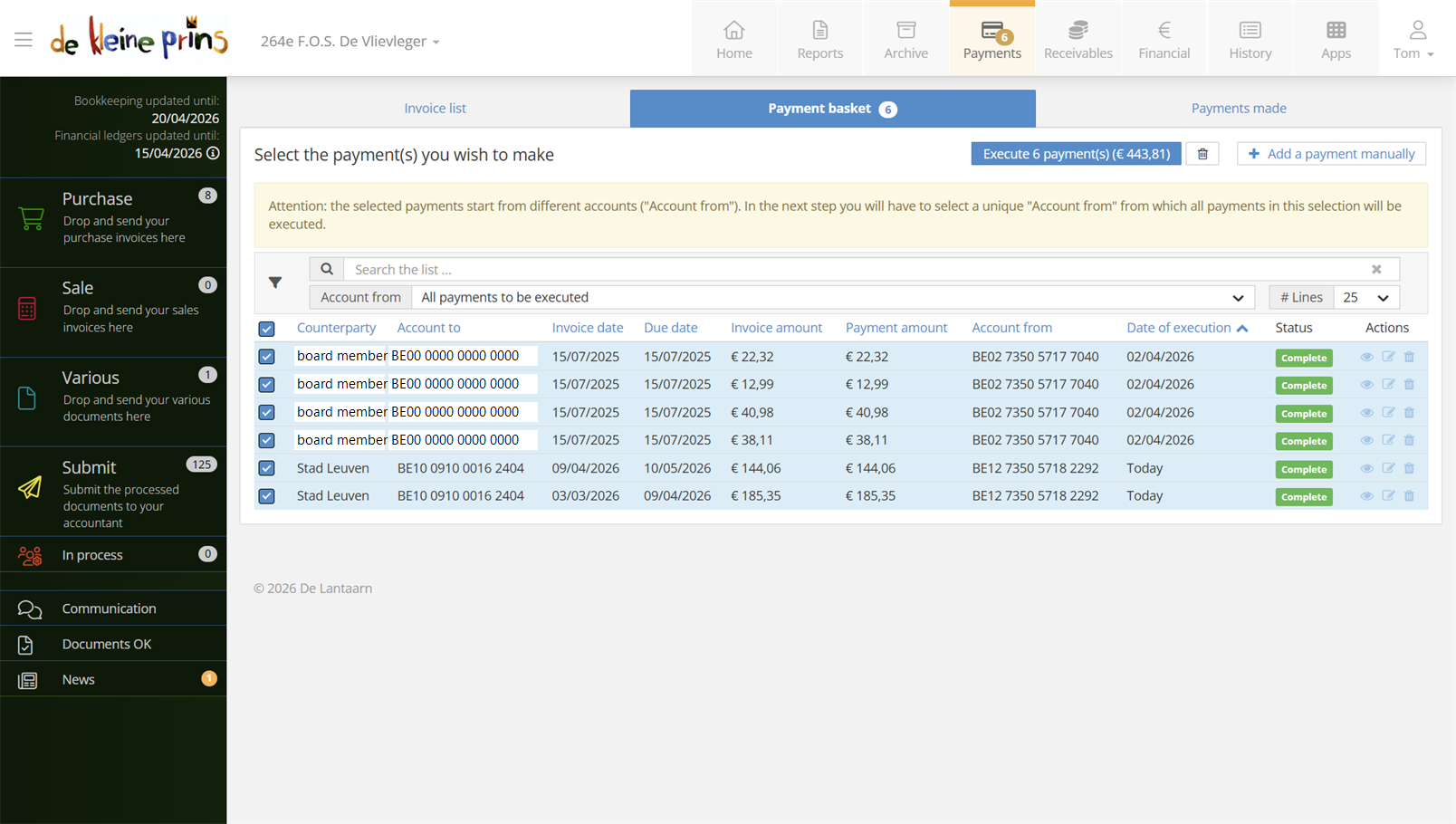
- The selected payments with the Execute x payment(s) button and the total amount.
Click the button. A window opens with some extra information (Initiate bulk payment): you select once again the account you pay from, and with the tick box you can overwrite the chosen dates of execution — handy if you want the payments to leave only on the due date.
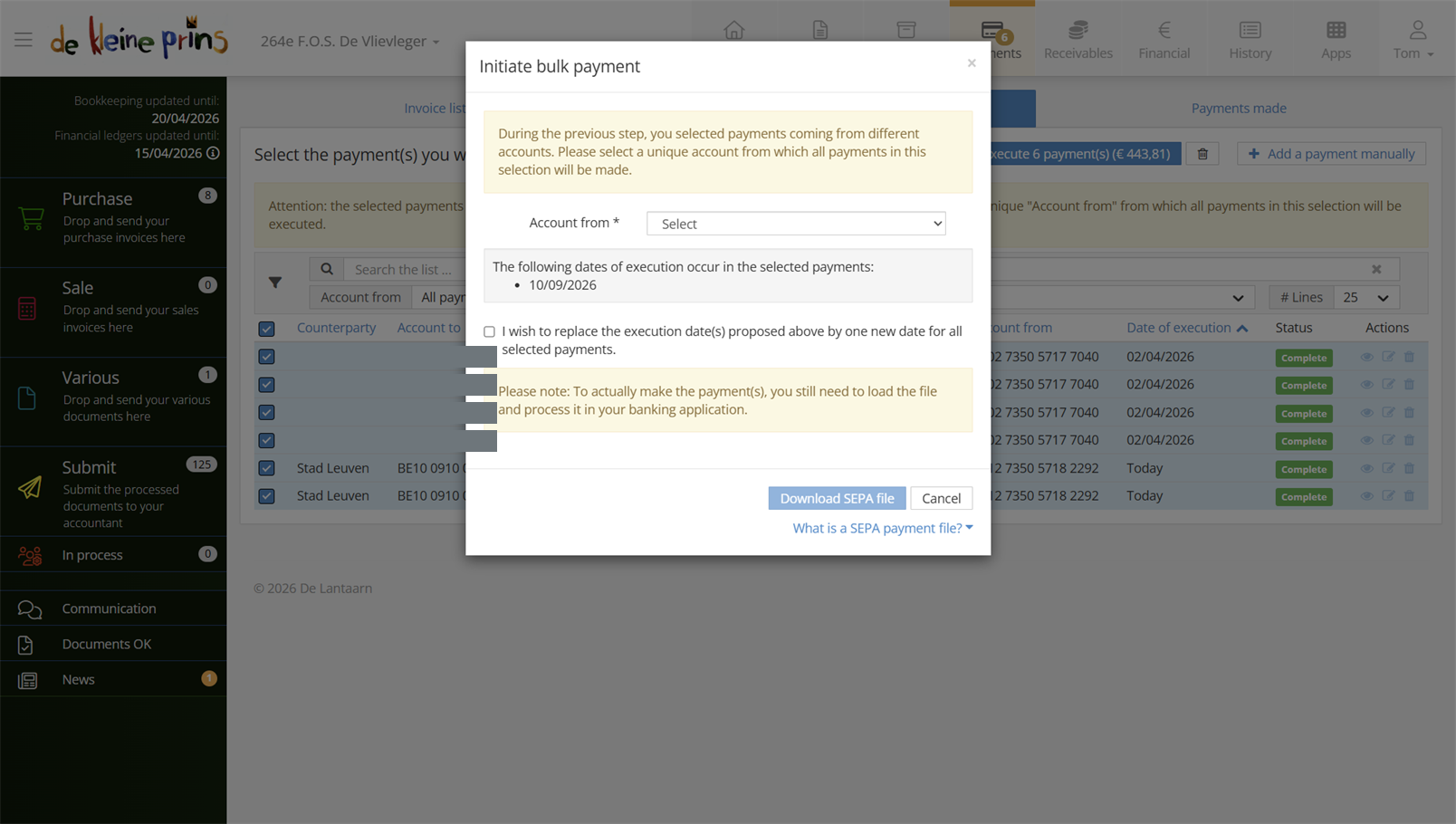
- The account choice and the Download SEPA file button.
Part 4: the SEPA file to your bank
Click Download SEPA file: you get an XML file that you save on your computer. Then you move over to your online banking environment:
- Find the option to pay via file (sometimes called “upload file” or “batch payment”) and upload the XML file.
- Your bank shows the same list of payments as The Lantern — check the number and the total.
- Authorise the order. Only at this moment does money actually leave; until then you can always turn back.
Most banks certainly offer this option on a business account. If you cannot find it, contact your bank branch.
Tip: do you have both an invoice and a credit note outstanding from the same supplier? Settle them in one payment instead of paying and reclaiming — how that works is covered in the articles at the bottom.
Part 5: approval needed? And a steady rhythm
In files with a payment approval process, a payment only reaches the payment basket after the right person has approved it; the payment screen then shows an extra Approval block at the bottom. For a non-profit board that four-eyes principle is highly recommended — how to set it up is in course part 14.
One more piece of practical advice, apart from the technique: choose a fixed payment rhythm, weekly or fortnightly for instance. The flow then becomes routine — work through the invoice list, fill the basket, authorise one SEPA file — and suppliers are paid on time without anyone dealing with it daily.
Next step: paid is paid — but where do you find everything back later? In course part 9 you explore the archive.
The screenshots show a real file in The Lantern, in the English interface; a few images (the mobile app and the upload flow) still show the Dutch one — the layout is identical. Personal details have been redacted.