
Course The Lantern - financial and history: checking your figures (#10)
How much is on the accounts? Which suppliers are still open, and which customers still need to pay? How much have we spent on rent this year? With Financial and History you look straight into the processed accounts — without waiting for a report or a meeting. In this part you learn to read both overviews, and above all: when to use which one.
Part 1: financial: your bank accounts
The Financial button shows all financial transactions as we posted them. On the left you see all the bank accounts of your file, with the current balance and the date on which the statements were last processed — so you know at once how up to date the picture is. On the right sits the transaction selection panel, with which you track down a specific transaction: by period, amount or counterparty.
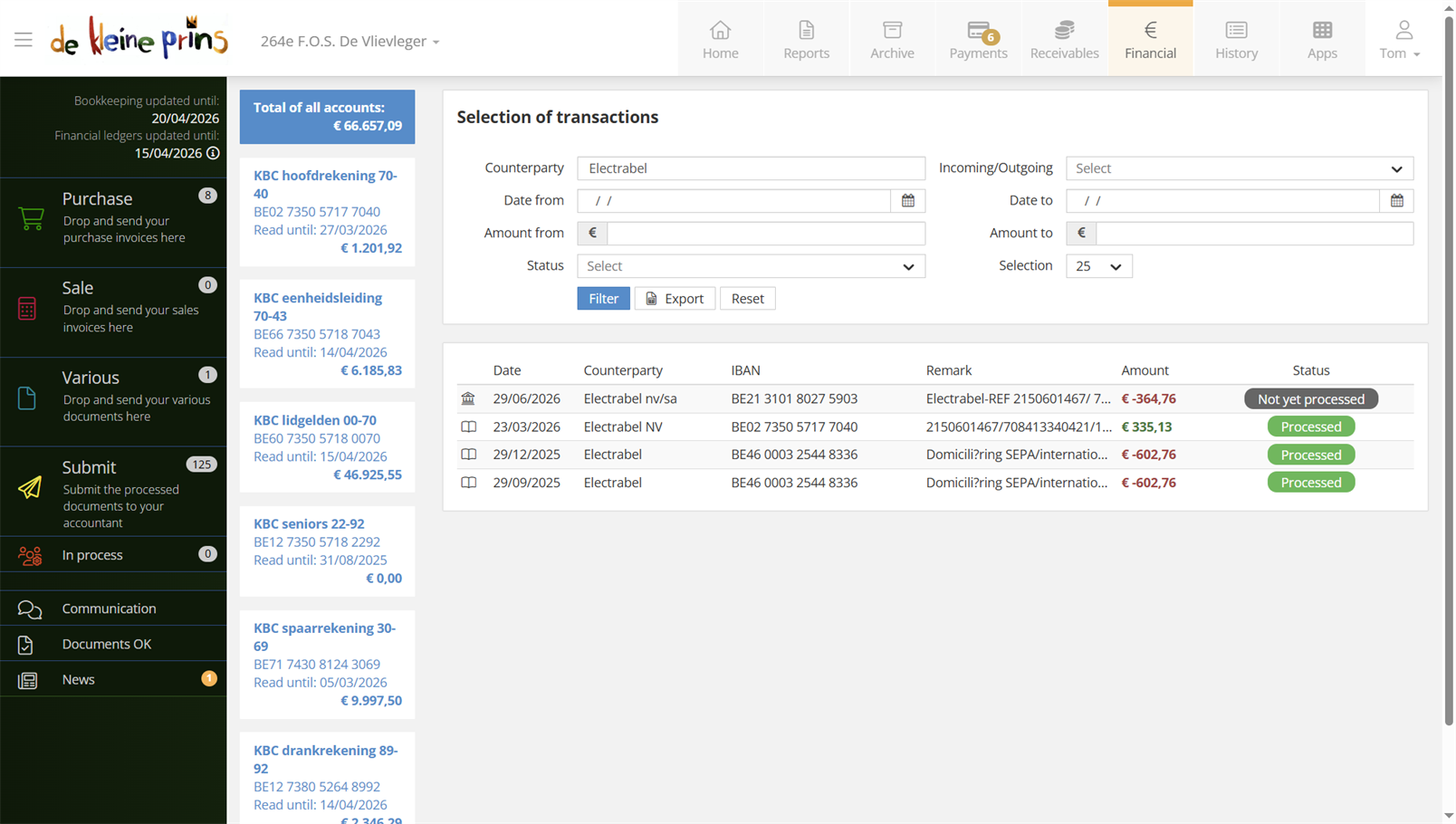
- The bank accounts with balance and date of the last processing.
- The transaction selection panel with the filters; Filter applies them, Reset clears them.
Part 2: the three statuses of a transaction
In the list of transactions one column needs explaining: Status. There are three possibilities:
- Not yet processed — the transaction is not in the accounts yet: the CODA file has not been loaded. The line is shown for information only.
- Still to be allocated — the transaction IS already in the accounts. The term is a little confusing, because it covers two very different situations: either the transaction is still waiting for a document to be linked to it (a supplier invoice yet to arrive, say), or no document is needed at all for this transaction — think of a donation received, a rent payment or bank charges. You see the same status in both cases; transactions of the second kind therefore never reach the status Processed, because there is simply nothing to link. So do not be alarmed by a list of “still to be allocated” transactions: often nothing is wrong.
- Processed — the transaction has been processed and allocated to a counterparty, document or account.
Above all remember this: Financial is an informative window on your bank traffic, not a working tool. To follow up outstanding items you work with the History below — which looks per counterparty rather than per bank transaction.
Part 3: history: three tabs
The history consists of three main sections, reached via the tabs at the top: Suppliers’ history - Payables, Customers’ history - Receivables and General ledger account history. Each screen is built the same way: a section with filters at the top (much like the archive), the list of results below. If your organisation keeps analytical accounts (course part 6), you also see a fourth tab, Analytical history: the figures per activity or project.
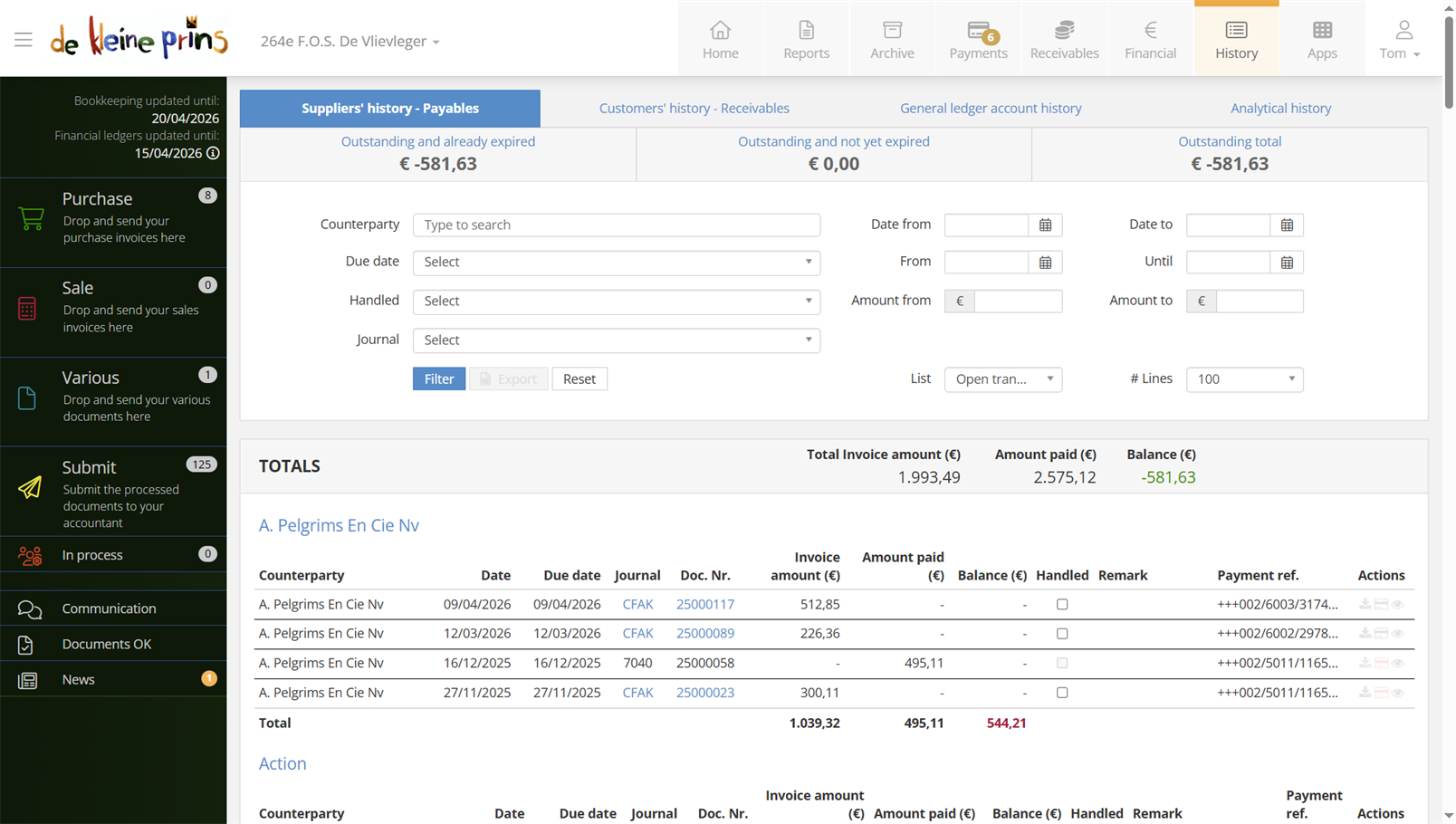
- The filters, with the List filter defaulting to Open transactions.
Part 4: suppliers and customers
The suppliers’ and customers’ history shows by default only what is outstanding — the List filter is set to Open transactions. That is your instant to-do list: which suppliers still need paying, which customers or members still owe you. To see the complete run, paid and unpaid, choose All transactions under List. After adjusting the filters, click Filter; Reset takes you back to the original list.
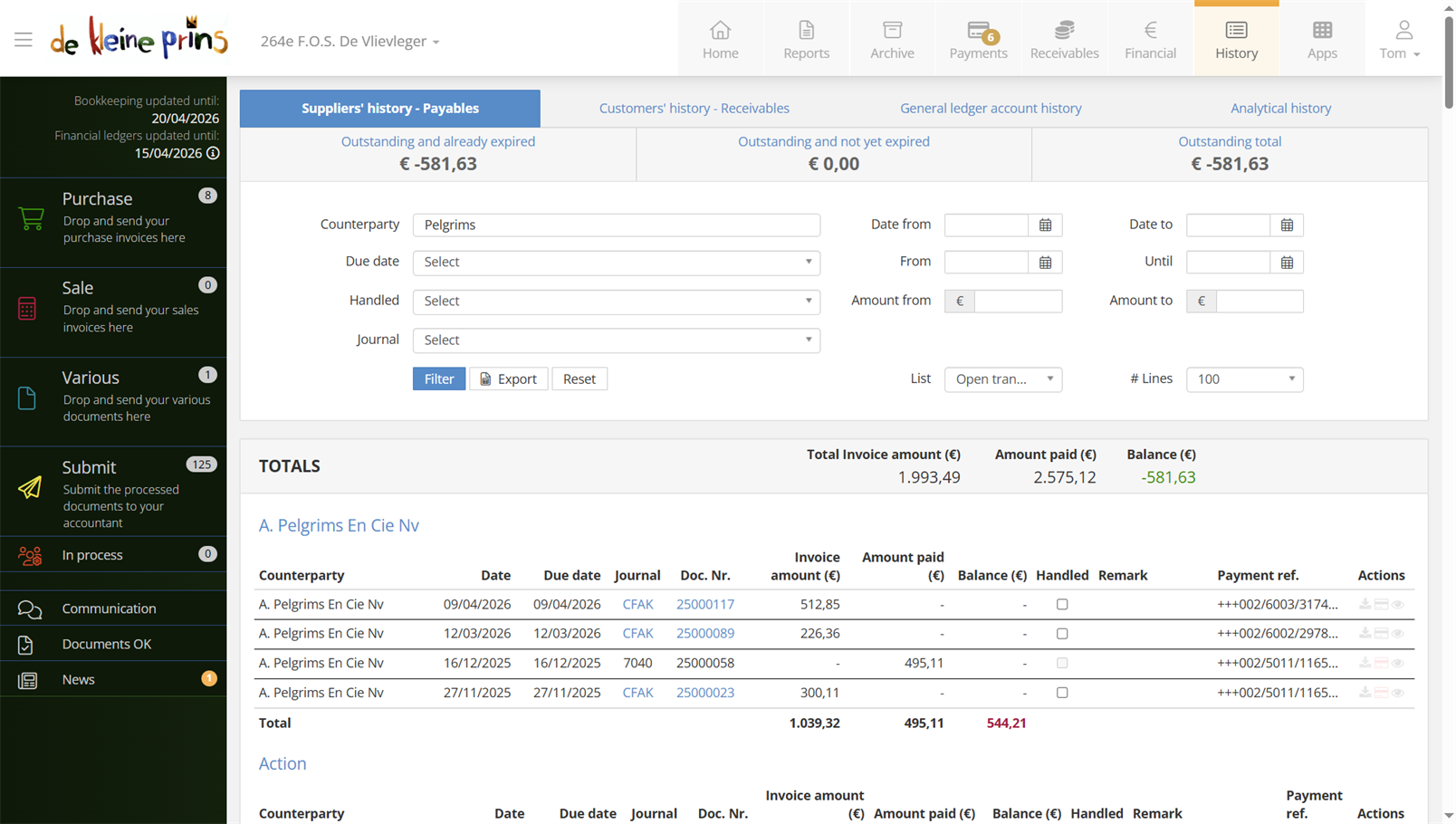
- The list, alphabetical by counterparty name.
Tip: the Export button turns the list into an Excel file, with the filters as they stand at that moment. That is an excellent way to communicate with us: add a column with your remarks (“this invoice is disputed”, “that customer pays in instalments”) and send the file to your account manager — far more efficient than separate emails per item.
Part 5: general ledger accounts
The general ledger account history works slightly differently: when you open it, no list is shown yet — you first pick a filter yourself. Under Account you find all the expense and income accounts to which entries have been posted, a few selected balance sheet accounts (such as the suspense account) and categories such as Turnover and Expenses, and more specifically Operating Expenses, Other Expenses and Operating Income. You then refine by financial year, accounting period, counterparty and journal, and with the number of lines you set how many results are shown at a time.
That is how you answer questions like “how much has gone to insurance so far this year?” or “what exactly is sitting on that ‘sundry costs’ account?” — without having to call us.
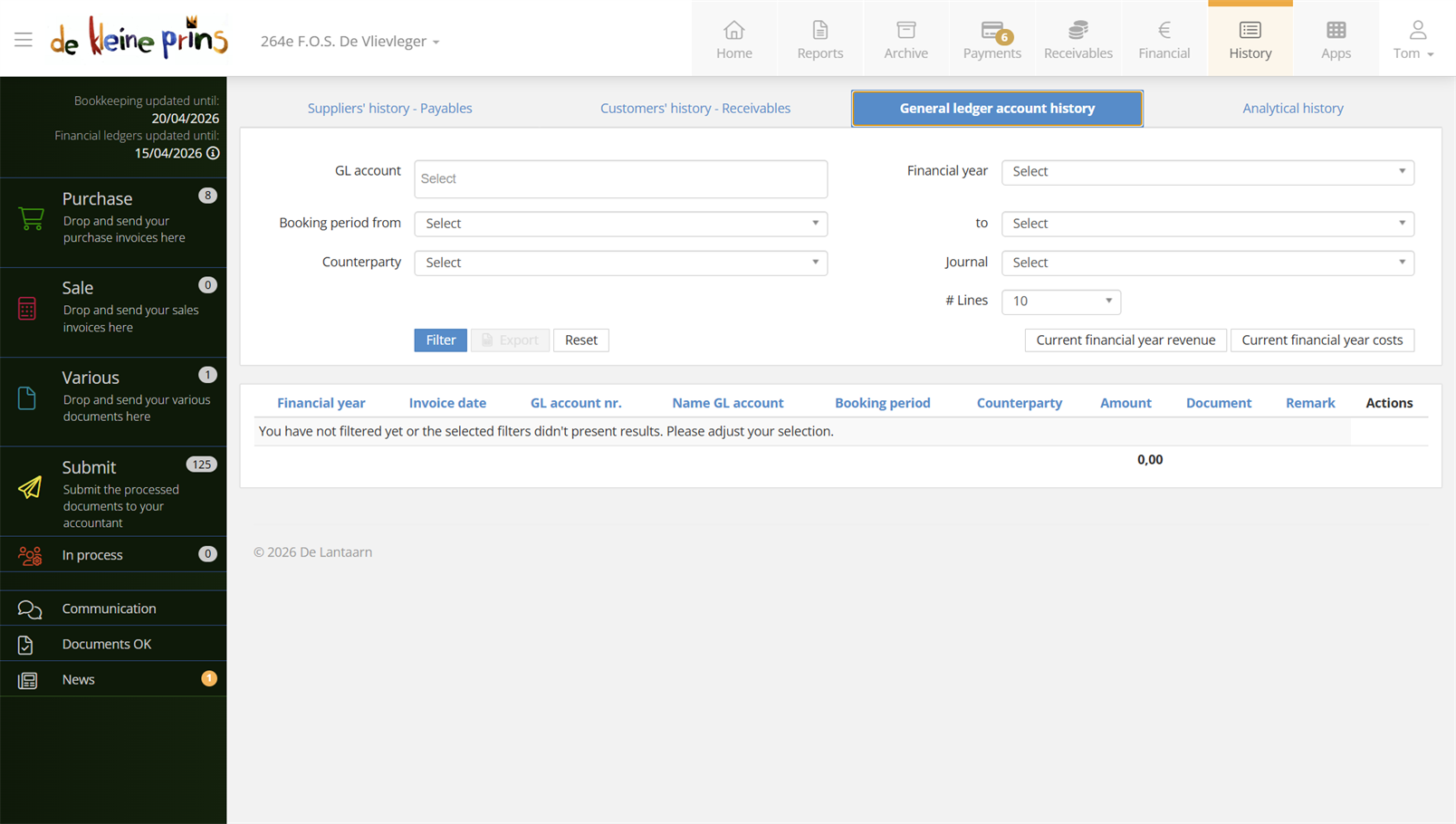
- The filter options, with the Filter, Export and Reset buttons.
- The preset filters Turnover current financial year and Costs current financial year — two buttons that answer the most frequent questions at once.
Next step: you now know the raw figures — in course part 11 you turn them into ready-made reports for your board.
The screenshots show a real file in The Lantern, in the English interface; a few images (the mobile app and the upload flow) still show the Dutch one — the layout is identical. Personal details have been redacted.