
Course The Lantern - splitting documents (#12, optional)
Scan a whole stack of invoices in one go and it arrives in your mailbox as a single file. No problem: with splitting you turn it back into separate documents in a few clicks — and that is necessary too, because every invoice must enter the accounts as its own document. This part is for those who work with a document scanner or stack scans; if you submit each document separately, feel free to skip it. The webinar on submitting and preparing documents (in Dutch, with English subtitles) also demonstrates splitting live.
Part 1: when to split?
Whenever one file contains several documents: a stack of scanned invoices, a PDF with twenty receipts, or a scan that accidentally holds two invoices. To split, click the Split icon under Actions in the mailbox overview.
As a common thread through this part we use an example: a scan of three pages, where pages 1 and 2 together form one invoice and page 3 is a second, separate invoice.
Part 2: the split screen
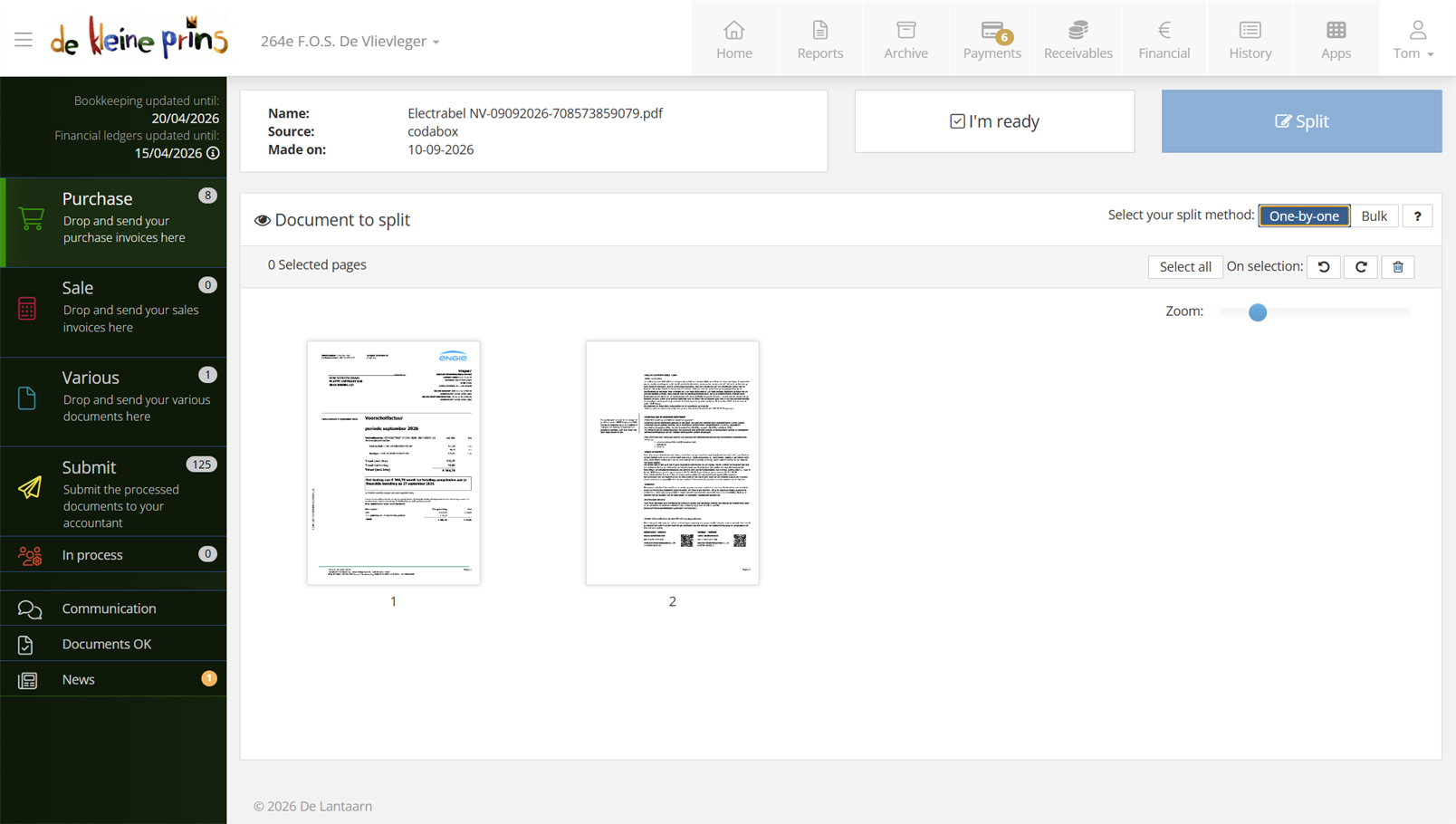
- The details of the document to be split.
- The I’m ready and Split buttons.
- Select your split method: One-by-one or Bulk (see below).
- The tools for the pages (rotating, changing the order).
- The previews of all pages.
The controls are the same as for merging (course part 13): you select a page by clicking its preview (clicking again deselects), dragging changes the order, and with the buttons you rotate skewed pages. The only real difference lies in the split method.
Part 3: the One-by-one method
With One-by-one you each time select the pages that together form one document. In our example: select pages 1 and 2, and click Split. The Lantern asks what should happen to the new document: choose Save in the mailbox to simply put it in the purchase mailbox, or Send to pass it straight on to the next step.
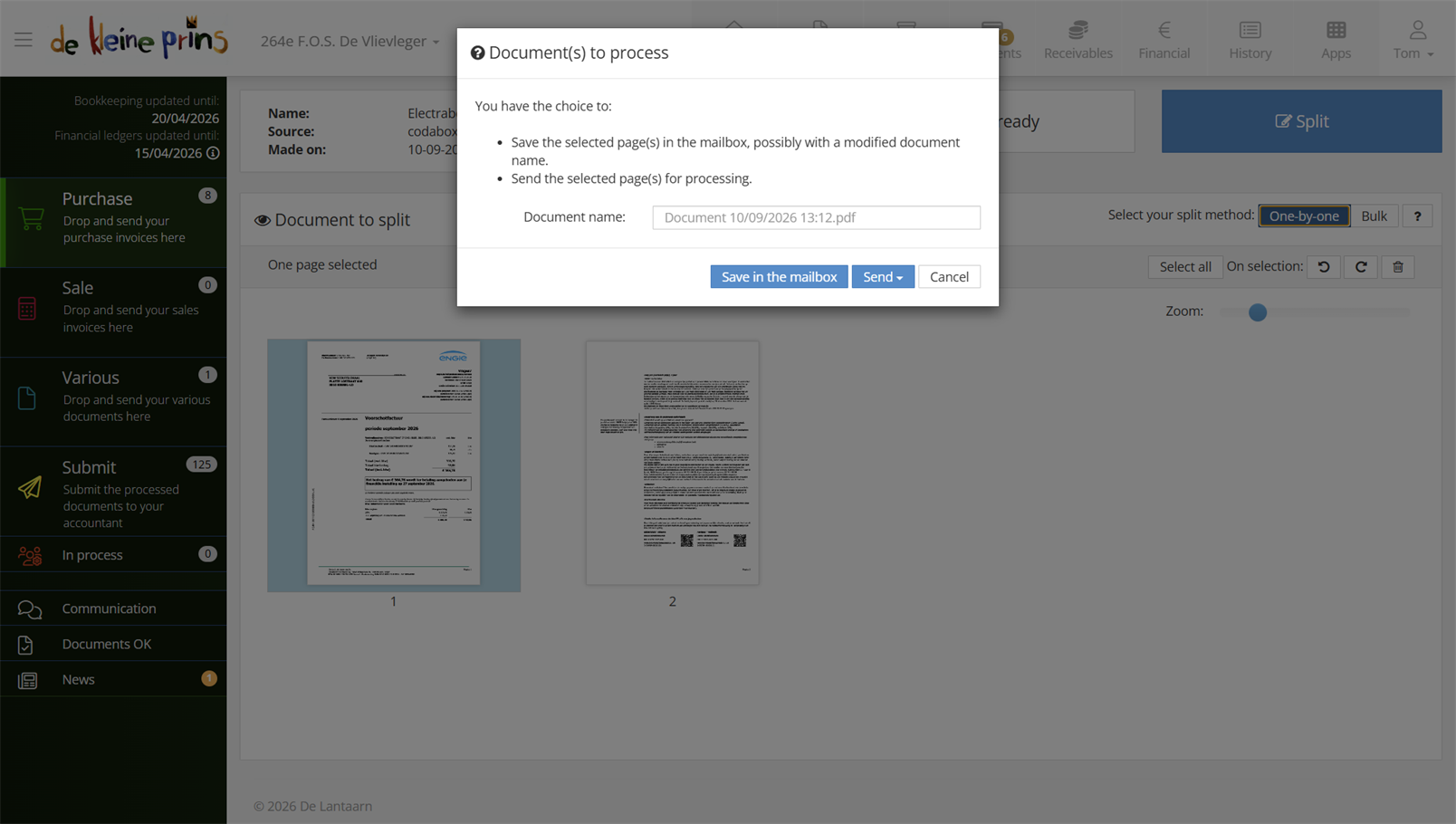
- The choice between Save in the mailbox and Send.
After that, one page remains in our example: page 3. Two routes to the same result: either select that page and click Split again, or click I’m ready straight away — the closing question from part 5 then follows.
Part 4: the Bulk method
Bulk is the fastest method for large stacks. You only select the first page of each document; The Lantern works out for itself where each document ends. In our example you would select page 1 and page 3 — the screen immediately shows that the first document will contain two pages and the second one. A single click on Split and both documents are created at once.
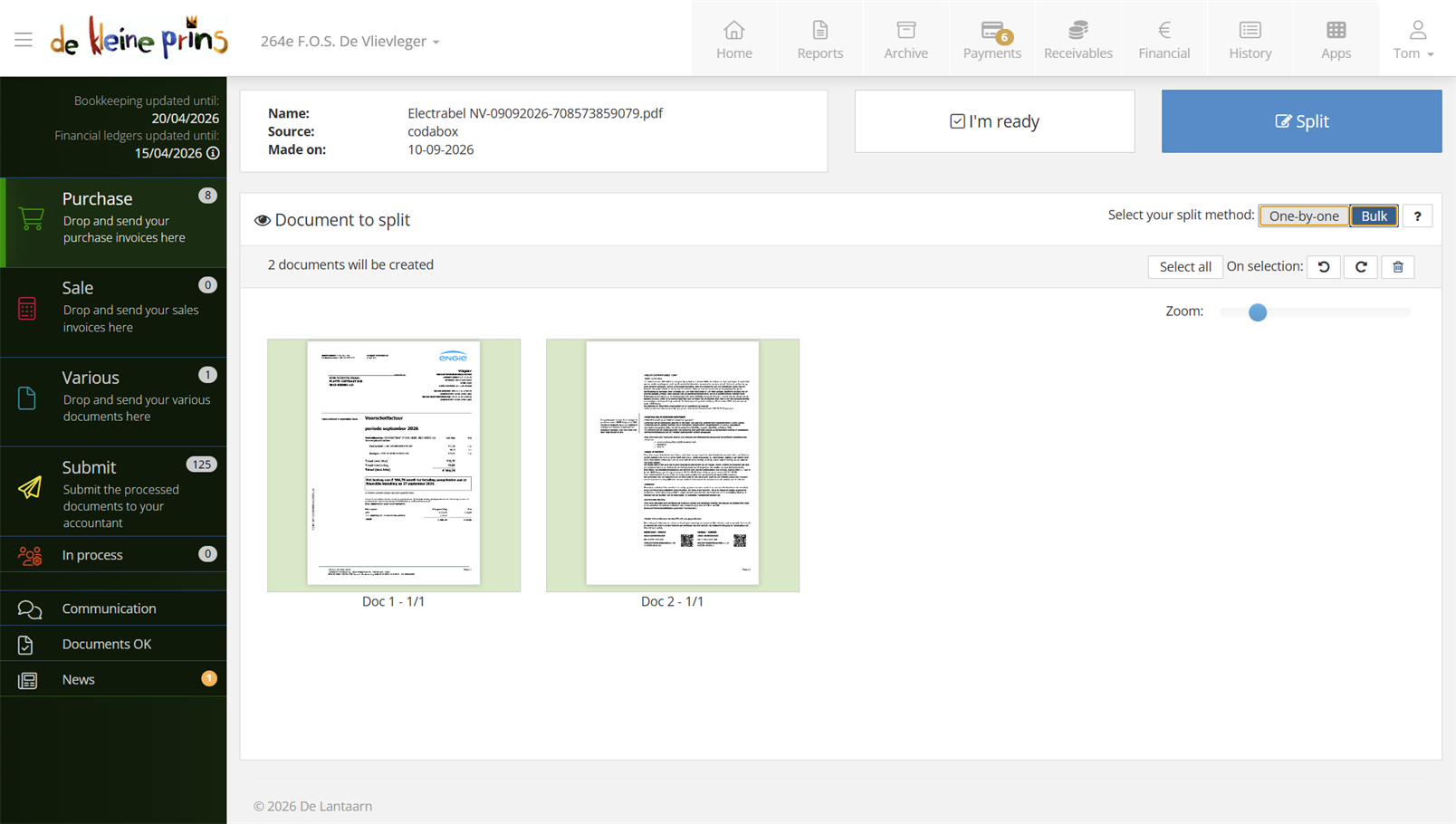
- The selected first pages and the announced division.
That is how you split one scan holding twenty purchases into twenty documents in seconds. Because with Bulk all pages are processed in one go, the closing question appears automatically here.
Tip: do you scan large stacks very regularly? Have a look at the separator sheets with QR codes from the article at the bottom — your scanner then, as it were, splits by itself.
Part 5: finishing off: what about the source file?
Once all pages have been processed (or you clicked I’m ready), The Lantern asks in the What would you like to do now? window what should happen to the original file. There are four choices:
- Save current status — you keep the source file as it now stands, i.e. only the pages not yet processed. In our example: just page 3, if you had not split it off separately yet.
- Keep source file — the original file returns to the mailbox with ALL its pages.
- Delete — usually the right choice: all pages have been processed as separate documents, the source file no longer serves a purpose.
- Cancel — takes you back to the split screen.
No need to worry about this choice: the split documents themselves are safely in the mailbox either way — the question is only about the original bundle file.
Next step: the reverse — merging loose files into one document — and moving documents to another mailbox is what you learn in course part 13.
The screenshots show a real file in The Lantern, in the English interface; a few images (the mobile app and the upload flow) still show the Dutch one — the layout is identical. Personal details have been redacted.